From an idea to a TikTok video
This AI TikTok video generator creates a short TikTok video from a prompt and optional reference image or video to preview and download. It generates new footage; use an editor for captions and cuts, or a clipping tool for highlights from an existing recording. It does not find trends, publish or guarantee views.
When this AI TikTok video generator is a good fit
Choose this AI TikTok video generator when you need one visual shot and want to check its credit quote before committing. Start with text or a reference image or video, choose duration and resolution, then preview and download. The original parked-pickup example and editable brief help you plan an opening. Use separate tools for exact timing, captions, trend research or product-page imports.
A reference image alone supplies a first-frame reference and an adaptive ratio. With a reference video, it guides appearance; choose the output ratio. Use a portrait image for vertical framing; writing “9:16” in a prompt does not set the ratio.
A public TikTok video link, if importable, supplies a reference—not a trend report or an edit. Import can fail; use only material you may process and share.
Try an opening you can inspect
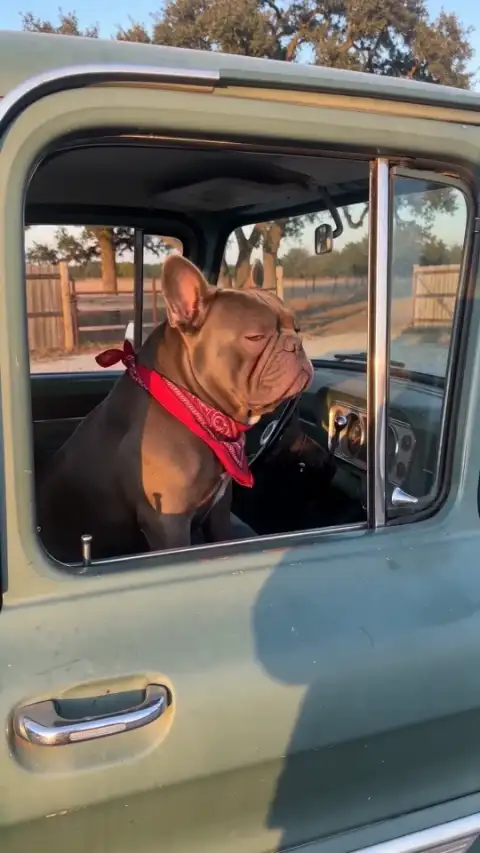
The parked-pickup dog is an original AI-generated video. The editable prompt is an adapted starting point, not its production prompt or a promise to reproduce it. Applying the brief replaces your text without starting generation.
TikTok · A visual guide only. Platform controls and crops vary; check the final upload. The guide is not included in your video.
Vertical 9:16. A dog sits in the driver’s seat of a parked pickup. It turns toward the open window, pauses with one paw on the wheel, then looks ahead. One steady shot, no text.
For this TikTok video, check the opening: is the dog visible before it turns, does the paw remain on the wheel, and can you understand the action with sound off? Keep the truck parked. Review each vertical video after changing one detail. An attractive imitation does not establish the source video's retention or trend status.
Make and download your TikTok video
- Prepare the TikTok video input. Write 3–2,000 characters. To add media, choose “Add media” and sign in. You can combine one reference image and one reference video. Images must be single-frame JPEG, PNG or WebP up to 10 MiB, at least 300 pixels per side and at most 36 million pixels. MP4/MOV references can be up to 20 MiB, 2–15 seconds for Basic or 2–30 seconds for Pro. Reference videos must contain a video track and be no more than 4,096 pixels per side.
- Set the output. For text or video input, including a video paired with an image, select 9:16 for a vertical video. Basic offers 4–15 seconds at 480p or 720p; Pro offers 4–30 seconds and adds 1080p. Check the native audio switch before creating the TikTok video.
- Review the credits. Review the displayed credits, then select Generate Video to start; sign in if prompted. Model, output duration, resolution and reference-video duration affect the estimate, which updates as you change your inputs or settings. See the video credit guide.
- Preview and download. Play the AI-generated video and listen, then download the TikTok video and upload it to your account.
Review your TikTok video before posting
The sample’s composition guide is excluded from downloads. Check the vertical video in TikTok’s upload preview. In-feed ad safe zones vary by format and captions; they do not define organic posts.
Check your TikTok video for clear faces, hands and movement in the AI-generated video. If the action is unclear, simplify it; each attempt needs a new quote and cannot repair old frames. Add captions or narration separately.
Rights, audio and disclosure
Use a reference image or video only when you have the necessary rights and consent. TikTok's AI-labeling explanation states that realistic AI-generated content requires a label. Check current platform rules before posting; disclosure does not establish permission to use someone's likeness.
For TikTok ads, its advertising policy on edited and AI-generated content requires disclosure of fully AI-generated or significantly edited media, such as a label or clear on-screen notice. Check that policy separately from the rules for ordinary posts.
If your TikTok video promotes a brand, product or service, TikTok requires its commercial content disclosure setting. This is separate from its AI label; check the current requirements before posting.
Native audio can be requested with the TikTok video; it is not an uploaded song or a rights guarantee. Businesses should use TikTok’s Commercial Music Library for commercial content. For other sounds, check that the license covers the use.
Product access to inputs and outputs is restricted to your account by default; an accessible direct storage URL can also expose a file; providers receive task inputs. See the privacy policy. Confirmed failures or confirmed cancellations without a usable result return credits; dissatisfaction alone is not automatically a failure. Returned credits keep their original expiry; expired credits remain unavailable. Cash refunds follow the refund policy. If the purchase funding the task was refunded in cash, the credit return may be reconciled against that refund.
Before you publish
Choose the right workflow
What is an AI TikTok video generator?
The AI TikTok video generator makes a new short clip for you to review and upload to TikTok. It is not a TikTok publishing, trend-discovery or account-growth service.
Do I need a photo or a reference video?
Start with text, optionally add up to 9 photos with Basic or 30 with Pro, plus one reference video. A single image without video guides the first frame; multiple photos provide visual references. With a video, photos guide appearance while the video guides motion.
Will it find trending sounds, hashtags or TikTok effects?
No. It creates a scene from your brief; it does not monitor trends, select hashtags or import platform effects. Choose appropriate sounds and posting details in your own TikTok workflow.
Prepare and generate
Can I control the background, camera and exact action timing?
Describe a background, one action and a camera move in the prompt. These guide a new scene rather than lock pixels or timestamps. There are no masking, subject-isolation or per-second motion controls, so check the entire result.
Which duration, resolution and aspect ratio can I choose?
Basic offers 4–15 seconds at 480p/720p; Pro offers 4–30 seconds and adds 1080p. The interface offers portrait, landscape and square choices where applicable. A single image without video uses an adaptive ratio; multiple images offer ratio choices.
Prepare and generate
Can I generate sound or upload my own song?
Native audio requests generated sound; turning it off requests silence. General tools have no separate song upload, exact voice matching, precise lip sync or beat mapping. Add licensed music and precise speech in an editor after download. Original reference soundtracks are not guaranteed, and there is no exported audio-mix or volume editor.
Accounts, credits and task status
How much will one generation cost?
The creation area shows the current quote. Tier, output length, resolution and reference-video duration affect it; prepared template references can also count. Recheck the total after changing settings. Video Credit Guide
Save, share and protect your media
Can I add captions, trim clips or edit individual frames here?
This workflow generates a rendered clip, not an editable timeline, layered project or 3D model. Download it to trim, assemble scenes, add exact text or adjust individual details in a suitable editor.
Do I need to label the video as AI-generated when posting?
It can be required for realistic generated or meaningfully altered scenes. YouTube also requires disclosure when generated music is the main focus. Set the disclosure yourself during upload and check each platform’s current rules; downloading here does not set it for you. Check YouTube’s disclosure examples.
Where can I find and download my finished video?
Open the completed task in the creation area or My Videos, play the result and use Download. Save your own copy for later editing or posting. Samples are examples, not your personal task output. The download is an MP4 file. My Videos