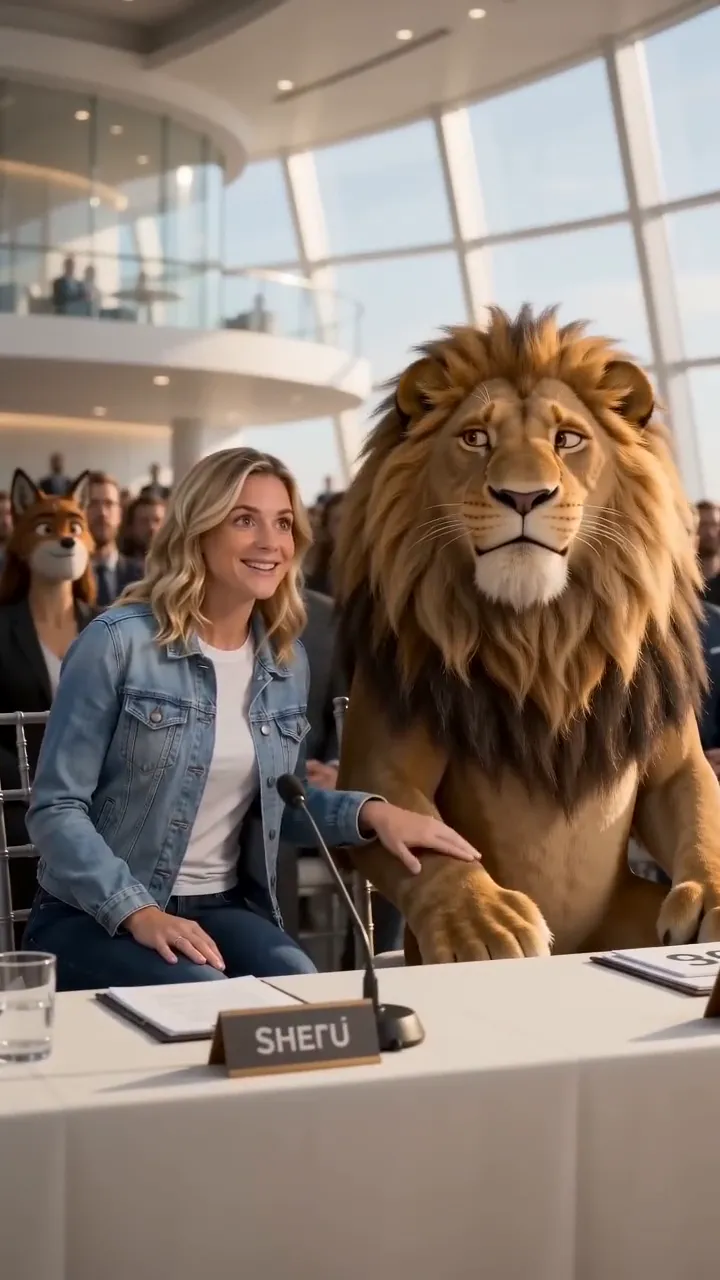
Sheru Bhai AI Video Generator
Upload your photo and join a golden or white lion in six auction comedies. Create a personalized 15-second video with Basic or Pro.
Make Your OwnYour Next Scene.
Browse Viral Video Templates, preview the original clips, and choose a scene or dance effect to make your own.
Find My Next IdeaMade for TikTok, Reels & Shorts
This template is not available in the selected language. Choose another starting point.
Choose a template. Bring your own twist.
Available templates 04
Upload your photo and join a golden or white lion in six auction comedies. Create a personalized 15-second video with Basic or Pro.
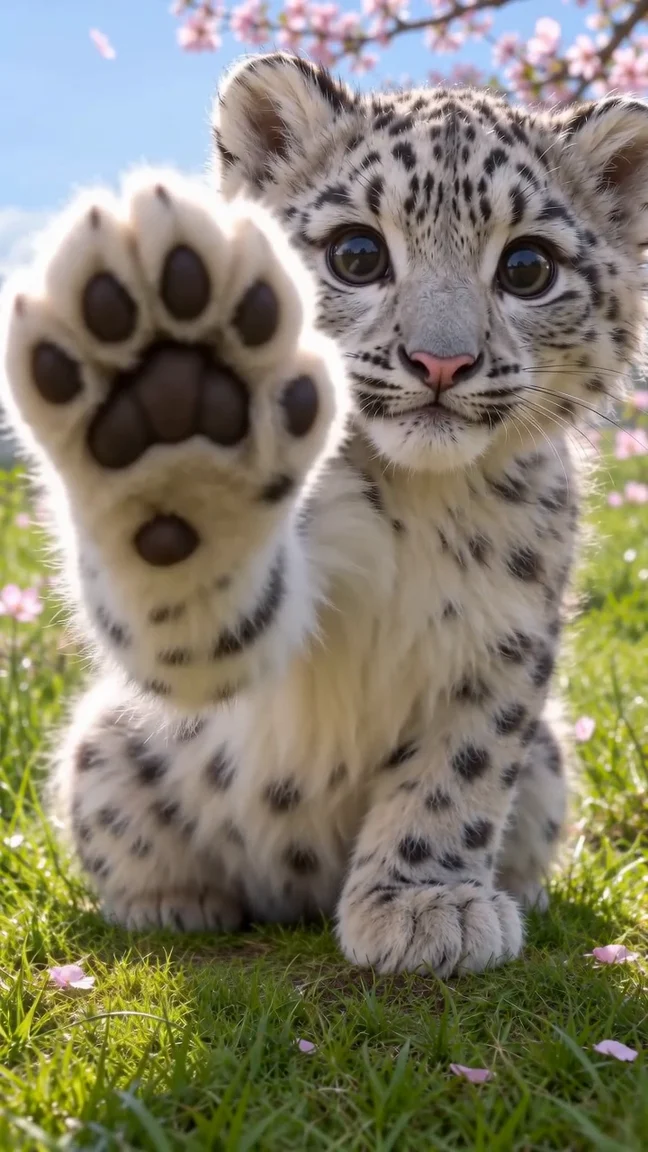
Make Your OwnTurn one pet photo into a big-eyed paws at you video, with your own pet or a snow leopard look.
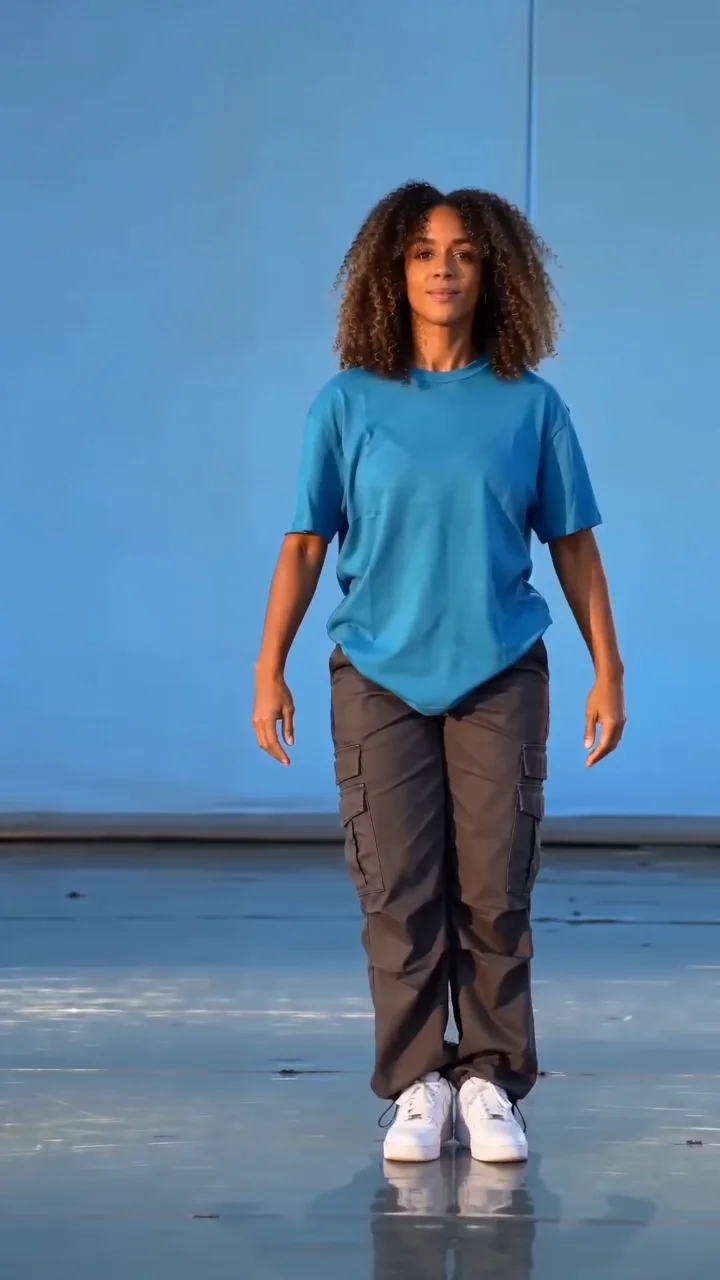
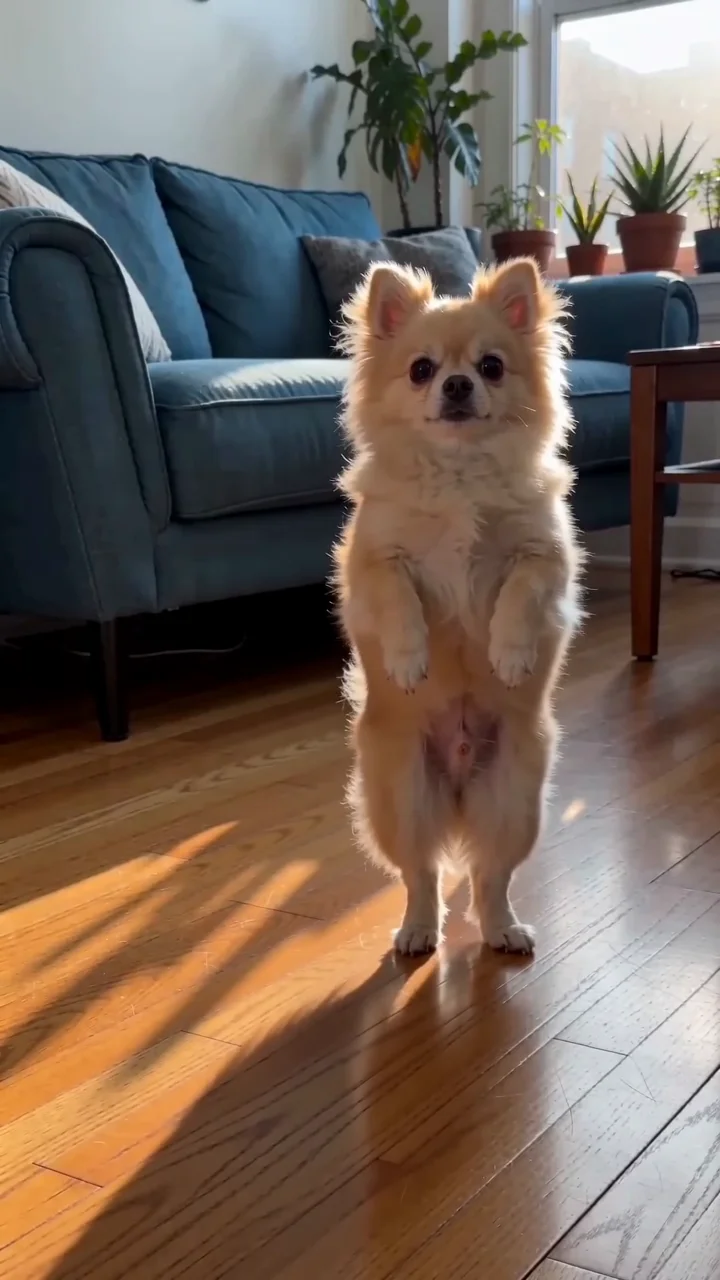
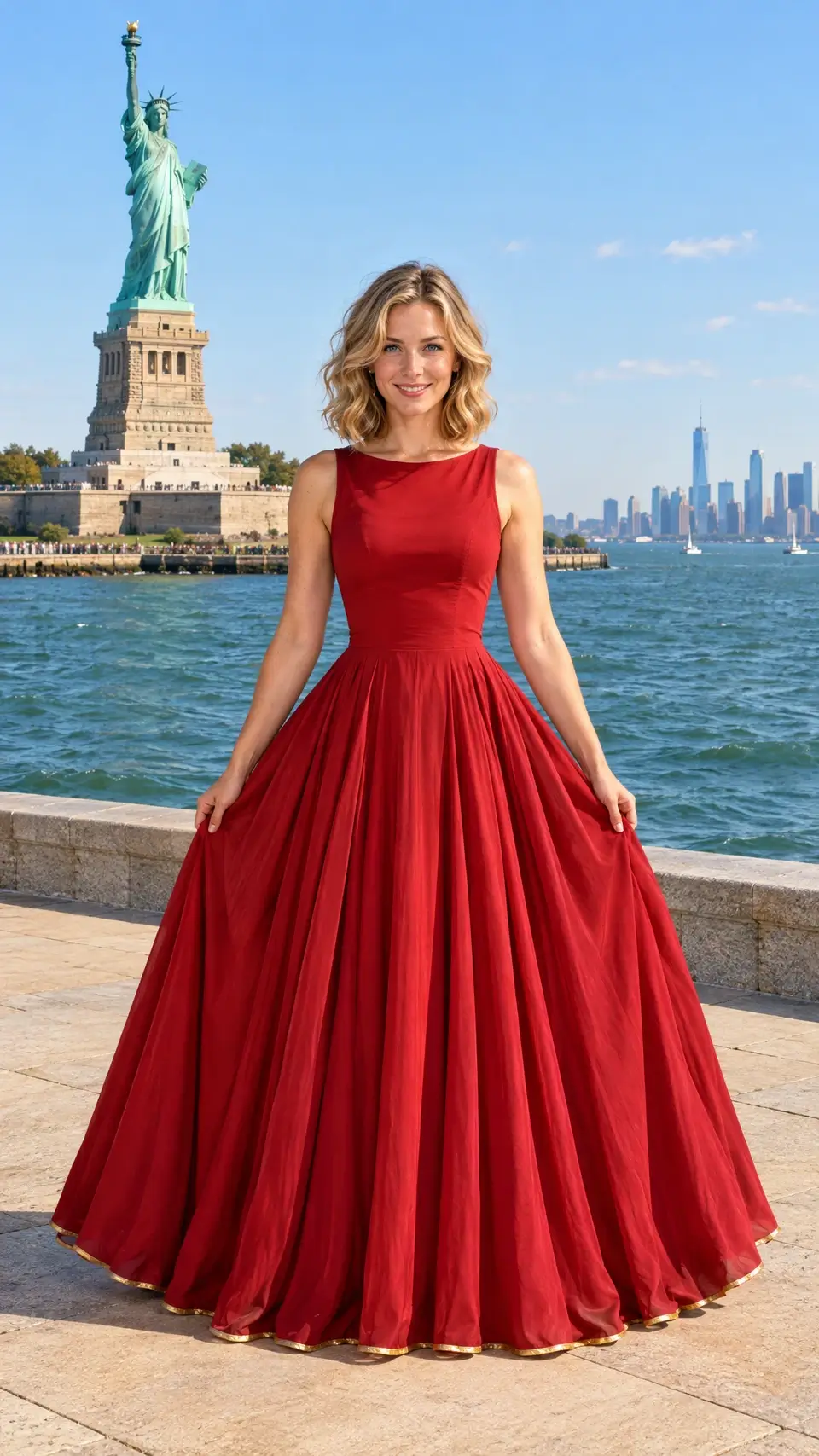
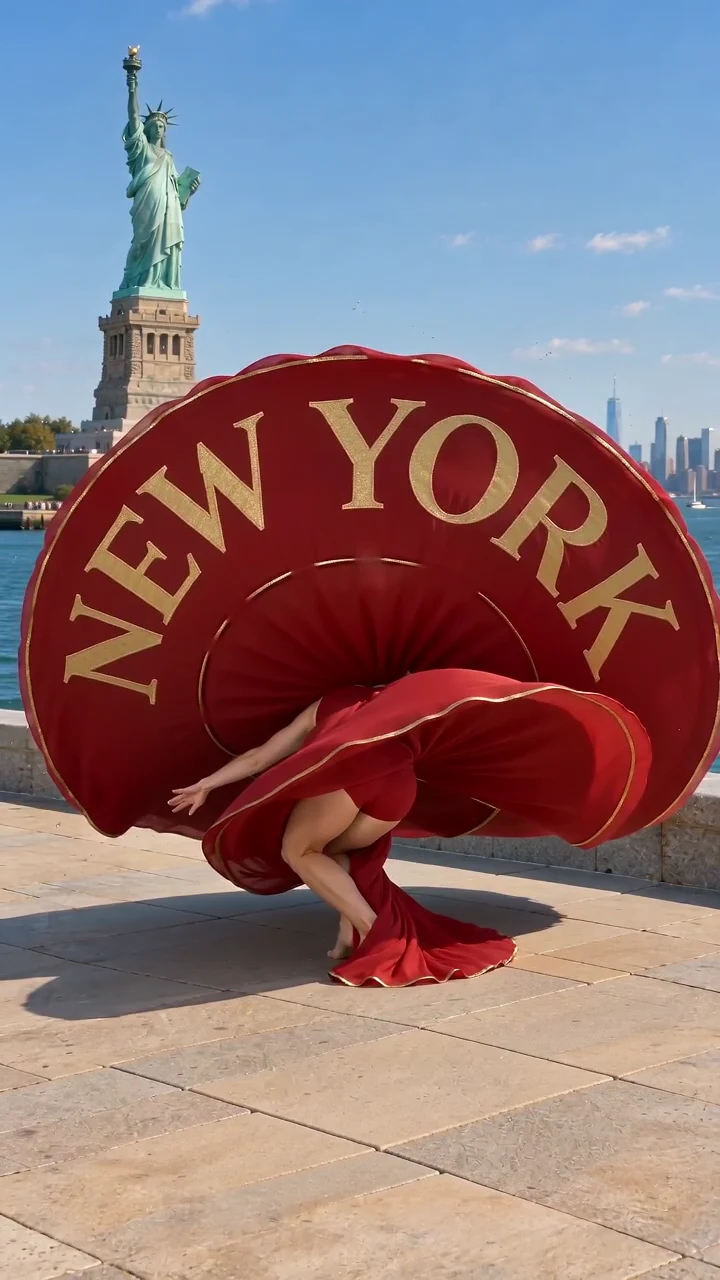
Make Your OwnMake the flash step your own. Add one photo for a classic dance, a playful pet performance, or a skirt reveal with your words.
Make Your OwnCreate an astronaut cat AI video from text, a pet photo or a motion reference. Make one new five-second space scene, then inspect and download your clip.
Make Your OwnOriginal previews. Your creation will be different.
Three ways to play with the dance template. Pick your move.
These are three styles of the same dance template. Previews are examples; generated results vary.
FROM INSPIRATION TO YOURS
Start with one photo for a preset effect, or open a video template with an editable prompt to direct the scene.
Play a sample and open the video template to check what you need to supply.
Add a photo or edit the prompt where supported. Check the output settings and current credit quote before generating.
In My Videos, check the motion, framing and sound, then download your short clip.
THE FIELD NOTES
These AI video templates generate a short clip using a preset scene or action. Play the original sample to see the intended effect and pacing. Your reference image and settings can change the subject, framing and motion in the finished video.
Choose an editable video template when you need to trim existing footage, arrange several shots or add captions on a timeline. Those are editing tasks you can do in a separate editor, as shown in the Adobe Express video editing guide.
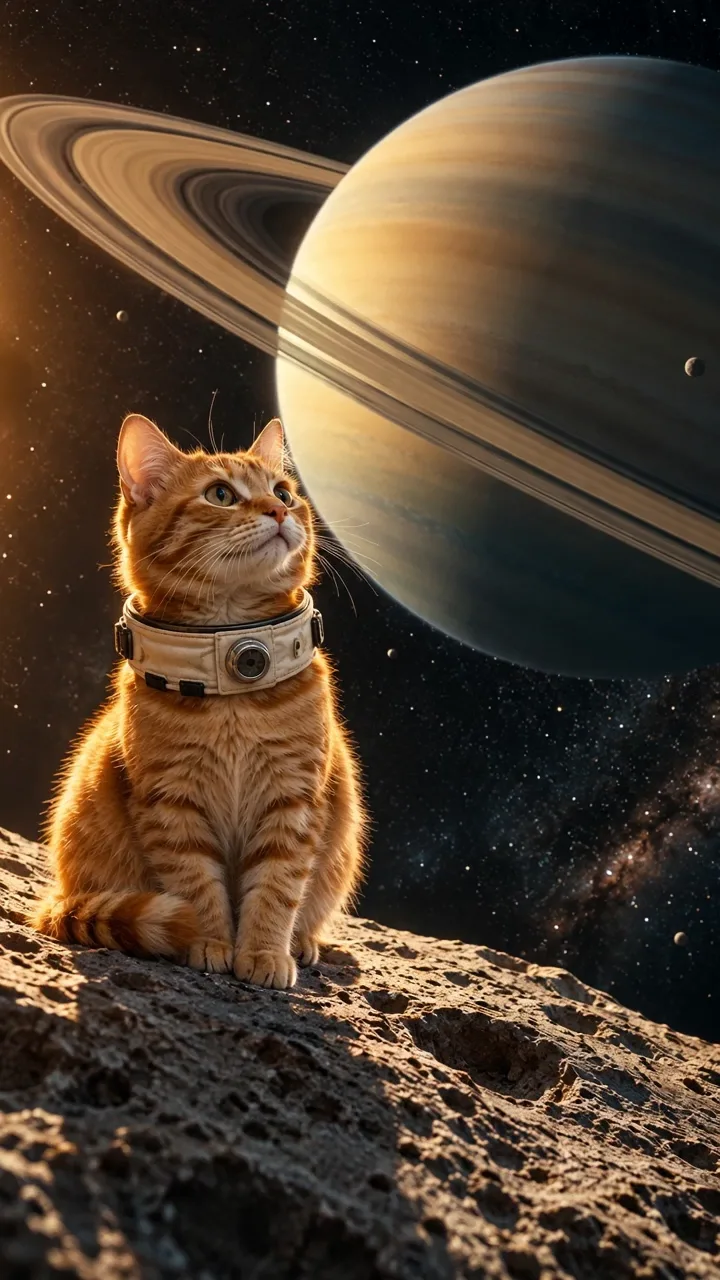 Cosmic Cat · scene preview
The input filter helps you pick a video template before uploading anything. Start with a Photo shows effects that require an image. Start with an Idea shows scenes that can begin with text and can also accept reference media.
Reference photoGenerated sampleUse a single-frame JPEG, PNG or WebP up to 10 MiB, at least 300 pixels on each side and at most 36 million pixels. For a motion template, pick a clear photo with room around the body. The Runway image-to-video guide explains how blur in a source image can become more noticeable once it moves. Upload media you have permission to use.
Cosmic Cat accepts one MP4 or MOV reference video on Basic, 2–15 seconds long, up to 20 MiB, with a video track and at most 4,096 pixels on each side. Trim a copy if the reference video exceeds the duration. The dance template supplies its own motion reference.
Before you generate, check the tier, output settings and displayed credits. The estimate updates with your settings and reference-video duration. Once your media is ready, select Generate Video to start. See the video credit guide for how quotes work.
Reference video is supported by scene templates. Dance templates supply their own motion reference.
Choose the right workflow
These AI video templates generate a new short clip using a prepared scene or motion. They are not editable CapCut or Premiere timeline projects. Available templates follow the language you are browsing.
Choose a sample whose action fits your subject and available input. Photo-required templates need an image; idea-based scenes can begin with text. Tool pages offer freer briefs.
It depends on the page. Product Video and photo-based motion templates require at least one image. Basic accepts up to 9 photos; Pro accepts up to 30. Open-brief tools and scene templates can start with text and accept optional supported references; check whether the selected page also accepts your own video.
No exact match is guaranteed. Appearance, motion, lettering and audio can vary. Start with a clear source and one simple action, then inspect the entire finished clip before sharing or buying another attempt.
You can inspect public samples and your accepted source media before submission. They are not a free render of your own request. Your result is generated after confirmation of the current credit quote.
Prepare and generate
General tools offer Basic at 4–15 seconds and 480p/720p, or Pro at 4–30 seconds with 1080p available. Templates can fix length, ratio or sound. Check the controls on the selected page.
Open the selected page to check its controls. General tools and scene templates accept a written brief; photo-action templates supply their own movement. Fixed motion, background details and exact timing are not independent editable tracks.
Native audio requests generated sound; turning it off requests silence. General tools have no separate song upload, exact voice matching, precise lip sync or beat mapping. Add licensed music and precise speech in an editor after download. Original reference soundtracks are not guaranteed, and there is no exported audio-mix or volume editor.
Accounts, credits and task status
The creation area shows the current quote. Tier, output length, resolution and reference-video duration affect it; prepared template references can also count. Recheck the total after changing settings. Video Credit Guide
Save, share and protect your media
Open the completed task in the creation area or My Videos, play the result and use Download. Save your own copy for later editing or posting. Samples are examples, not your personal task output. The download is an MP4 file. My Videos
Before posting a realistic AI performance to TikTok, apply its required AI label. TikTok’s AI labeling guidance explains the rule. Review the generated scene even when the input was a real photo.
Adobe Express Help — Create videos covers editing tasks such as trimming and captions.
Runway Help — Image to Video Prompting Guide explains how input image quality can affect motion results.