GTA 5 Goodbye AI Video Generator
Pick a farewell scene and turn one portrait into a cinematic short.
Make Your Farewell
Choose Your Farewell
Play a scene, then use it with your portrait.
From Portrait to Departure

What is the GTA 5 Goodbye AI video?
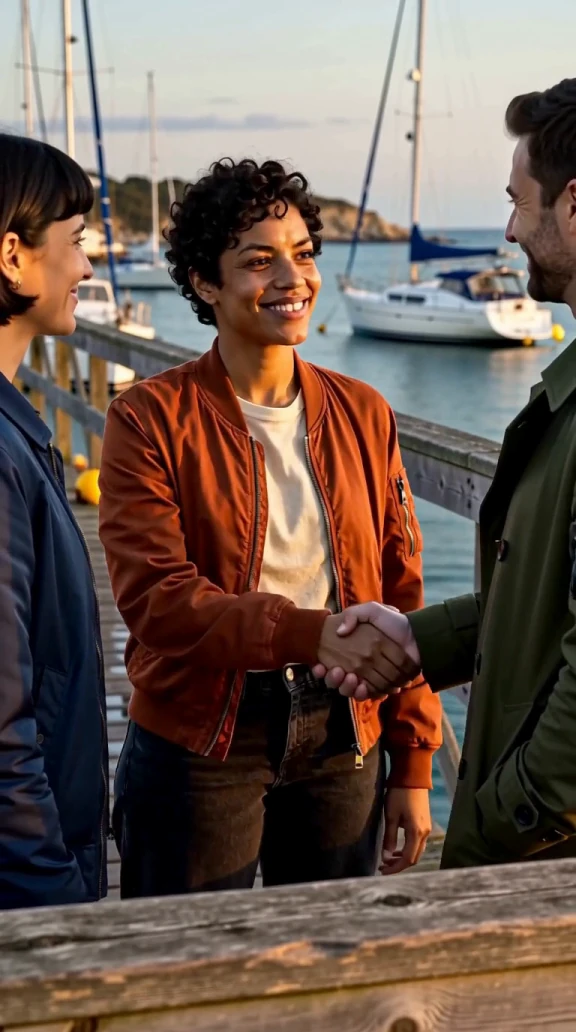
The GTA 5 Goodbye AI Video Generator turns one photo into a cinematic farewell video with your portrait as the traveler. Choose among waterfront goodbyes, neon night scenes, illustrated portraits and departures by road or water. Each farewell video sets the place, the main gesture and any fictional supporting characters.
The GTA 5 Goodbye fan format tells a short story about leaving a familiar place. In a goodbye clip, a wider view can establish who has come to see the traveler off. A close-up lets a handoff or a glance carry the moment. A group photo can hold a shared memory. A coastal drive or a boat pulling away can let the farewell settle. Viewers can follow the story even with the sound off.
A fist bump can introduce the friendship in a single shot. UEKAN’s edit shows the arrival and the greeting on the pier before getting closer to the people saying goodbye. UEKAN on TikTok — “Thank you for 13 years”
A hug can hold the moment for longer. Lucid Vice GTA67 includes an embrace and a separate departure, giving the parting and the drive their own screen time. Lucid Vice GTA67 on TikTok — “Goodbye, GTA V”
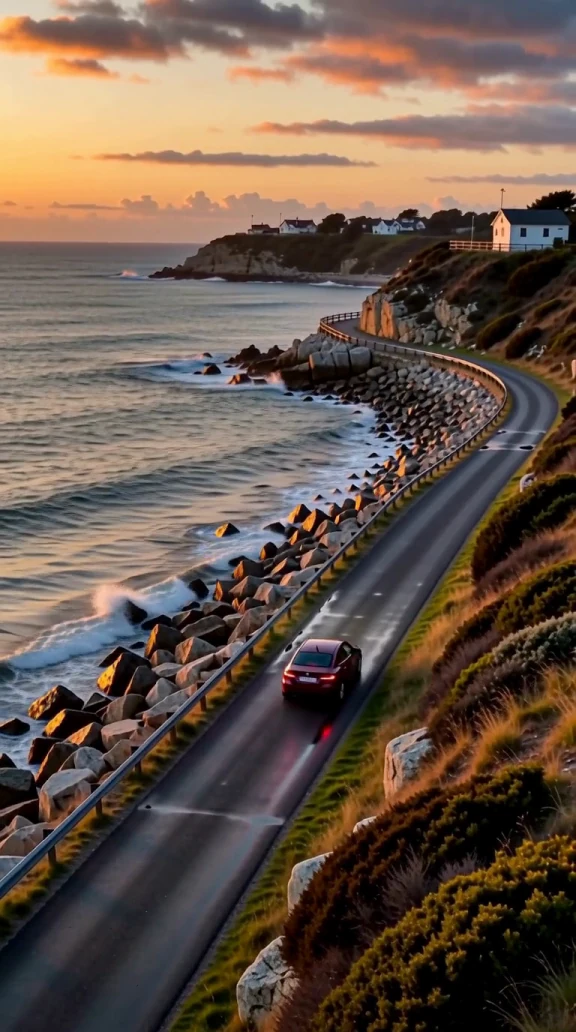
An open road gives a goodbye clip another ending. The GTA6Gamplay edit lets the car recede before the image fades, a useful example of giving the final shot time to read. GTA6Gamplay on TikTok — the last drive
How do you make a farewell video from one photo?
Choose one photo of a consenting adult. A sharp head-and-shoulders portrait with clear eyes and even lighting gives the close-up useful reference details. Upload a still JPEG, PNG or WebP up to 10 MiB. Each edge must be at least 300 pixels and the image must stay within 36 megapixels. The selected template supplies the setting, cast and props.
Choose a scene and a clear portrait
Open a preview under Choose Your Farewell, then select Use This Template to bring the scene to the generator. Add or check your portrait there. An uncluttered background and even lighting help keep facial details visible. On a computer you can bring over a photo with phone upload. To try the flow without choosing a personal image, use the available sample portrait. Choosing another scene keeps the photo you already added.
Set the frame and sound
The scene preview guides the action, camera and cuts. Basic and Standard make a 12-second 9:16 video at 480p or 720p. Pro adds a 1080p option and chooses the framing and duration automatically. Check the sound setting before starting.
Check the quote and generate
Sign in and check the credit quote for the current settings. Start when the selected portrait and quality look right. Closing the sign-in or credit dialog retains your photo and choices in the draft.
Watch the handoff and the exit
Watch the complete farewell video. Check whether the traveler still resembles your portrait and the main gesture reads clearly. On the pier, look for the car keys or keepsake in the handoff. In a group photo, check that every face fits the frame. In a departure, make sure the final shot shows where the traveler went. Small objects, clothing and faces can change between shots. If the face is hard to recognize, try a recent photo framed closer with visible eyes.
Download and check your crop
Save the finished farewell video directly or use Download to Phone on a computer. Open the file after transferring it. When placing the goodbye clip in TikTok, Instagram Reels or YouTube Shorts, check that captions and app controls leave the eyes, hands and any car keys visible. Review the final frame too, especially with Pro’s automatic framing.
A farewell you can follow in a few shots
Choose Sunset Pier for a key handoff beside the water and a coastal drive. Neon Last Ride uses a rainy city street, a quiet farewell and a compact sedan receding through neon reflections. Painted Boulevard looks like a moving illustration, with a folded postcard and a small hatchback leaving in warm light. Marsh Departure follows a misty dawn goodbye from a wooden dock to a little ferry on a reed-lined channel. Play each scene preview to judge the mood before applying it to your portrait.
Choose by the moment you want people to remember. A shoulder pat or a car-window wave puts the focus on a small gesture. A waterfront group selfie puts the friends together in one frame. For stronger color, try an illustrated portrait or arrive on the painted boulevard. For movement across the landscape, the wetland airboat takes a different route from the ferry.
Use the GTA 5 Goodbye AI Video Generator when you want to start with one photo and a scene that already has an ending. For a personal post, try a caption about a specific in-game memory. A short line leaves the final shot visible as the goodbye clip ends. Choose a flexible animation tool if you want to design a different cast or plan each shot yourself.
Explore the animated video tool
Create Your Farewell VideoGTA 5 Goodbye AI video questions
How do the GTA 5 Goodbye templates differ?
Some scenes tell the story with car keys or a gift. A group selfie gathers the friends close. The illustrated scenes change the visual style, and the car, ferry and airboat scenes show the traveler heading away. One portrait supplies the traveler. Details can vary in the finished video.
Can I use a selfie or a group photo?
Use one adult selfie or solo portrait, preferably head and shoulders with the face fully visible. The template casts one traveler. Crop a group photo to isolate the person first, and use a photo you have permission to animate.
What if my photo is very small or animated?
Use a still JPEG, PNG or WebP with at least 300 pixels on each edge, no more than 36 megapixels and a file size of 10 MiB or less. Export a still frame from an animation or choose a sharper image if the original is too small.
Do I need the trend video or a prompt?
One photo is the required input. The selected template supplies the setting and scene direction, so you can use your portrait without writing a farewell script. The available sample portrait is an option if you just want to try a scene.
Can I make a vertical GTA 5 Goodbye video?
Yes. Basic and Standard make a 12-second 9:16 clip at 480p or 720p. Pro sets duration and framing automatically. Check the result’s crop if your goodbye clip needs to fit a particular layout.
Can I turn off the sound?
Yes. Turn off sound before generating a silent farewell video. With sound enabled, the generator asks for ambience suited to the setting, such as wind at the pier or rain on a city street. The actual audio can vary. If you add music after download, use a track you have permission to publish.
How do I see the generation cost?
Check the credit quote in the generation controls after choosing quality and sound. Sign in with enough credits before submitting. You can preview each farewell video before using credits for your own.
Will my face and outfit stay consistent?
A sharp portrait helps the traveler look recognizable, but facial details, clothes and small props can change between shots. Review the close-up and the handoff before posting. Starting a new generation uses a new credit quote.
What if my video is still processing or fails?
Check the status beside your result. A confirmed failure follows the automatic credit-return flow. Wait for a final status while the task is processing or saving so you can tell whether the farewell video is available.
Sources
- UEKAN on TikTok — “Thank you for 13 years”
Watch the greeting and fist bump establish who has come to say goodbye.
- Lucid Vice GTA67 on TikTok — “Goodbye, GTA V”
See how the embrace and the later drive work as separate moments.
- GTA6Gamplay on TikTok — the last drive
See an open-road variation that lets distance and the fade finish the scene.