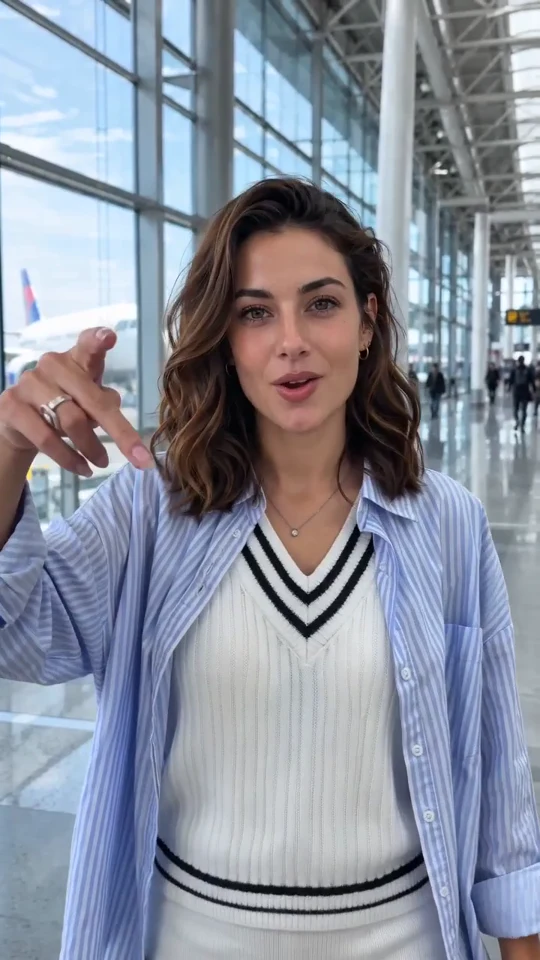
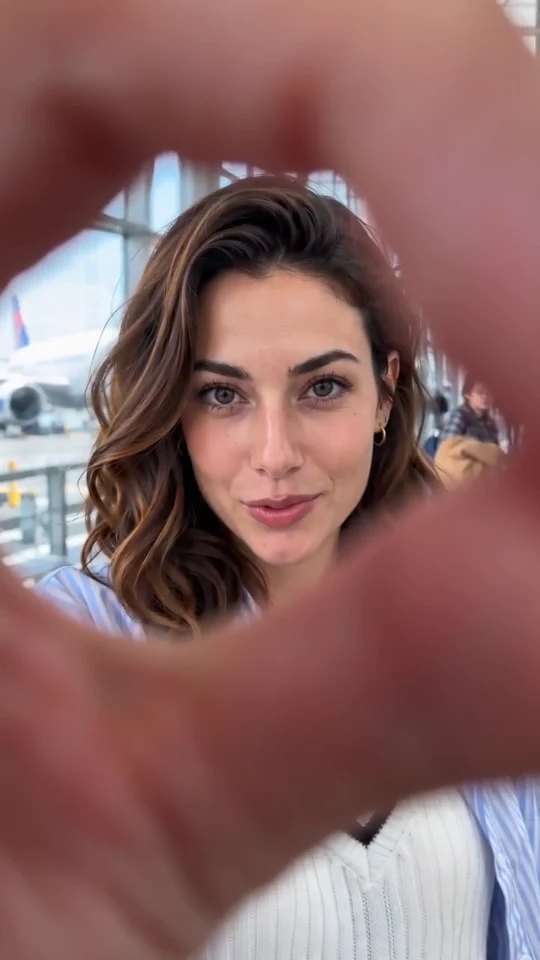
What is a finger circle transition?
Airport Finger is a photo-to-video template for an eight-second travel transition. The traveler raises one hand in an airport terminal and makes a ring with their thumb and index finger. The camera appears to pass through that opening, and the person reappears on a neon-lit city street. The finger circle transition gives the viewer a visible reason for the sudden location change. AI Trend Club's airport transition tutorial breaks the sequence into the gate, the hand circle, the night street, and the ending turn.
The airport-to-city transition depends on continuity. The plain jacket and camera direction can carry through the cut, so viewers recognize the traveler when the terminal windows give way to neon. AeroCorner's moving-walkway example illustrates how covering the lens can hide an edit between airport shots. iSpazio's hand transition tutorial shows another way to use a hand as the opening into a different place.
How to make the airport transition
Have one photo of an adult you have permission to depict. A sharp, waist-up portrait with an unobstructed face and room around the shoulders works well. A daylight selfie works for the airport transition. Choose a photo where the person's eyes, hairline, and face shape are easy to see.
- Add your photo. Select Upload Photo and choose a JPG, PNG, or WebP up to 10 MB. Use Try a Sample to fill the slot with the example traveler, or Add from Phone on desktop to transfer a photo from your phone. Check the portrait preview.
- Check your settings. Basic and Standard use an eight-second, 9:16 sequence. Pro chooses output length and framing automatically. Choose a resolution and whether to keep the original template audio under Quality & sound. Review the credit quote, which includes the built-in motion reference. Use Creative Direction to add an optional video prompt, such as softer light from the storefronts.
- Generate and watch both locations. Sign in and select Generate Video. Replay the teleport transition to check the gaze, finger gesture, and turn against the sample. Download the finished video or send it to your phone from desktop.
Why use a preset for the airport-to-city transition?
Airport Finger uses your photo for the traveler’s likeness and a built-in video for the performance. The photo guides the face, hair, and outfit across the cut. The video guides the gaze, expressions, hand movement, and the moment the scene switches. The finger circle transition works as a trip announcement, fictional city reveal, or opener before your own travel footage. You choose quality and whether to add sound.
For an airport transition that reads at phone size, leave room for the raised arm. A familiar collar or strap helps you check continuity in the travel transition. Try the sample portrait to see how much space it leaves around the subject.
If the finger circle transition looks distorted, try a clearer portrait with more space around the arms. For a cleaner airport-to-city transition, keep styling notes specific to one detail such as warm shop lights. The model aims to follow the reference, and the exact expression or movement can vary across runs. For Shorts, YouTube accepts square or vertical short videos within its duration requirements. YouTube Help on uploading Shorts.
Frequently asked questions
What happens in the Airport Finger effect?
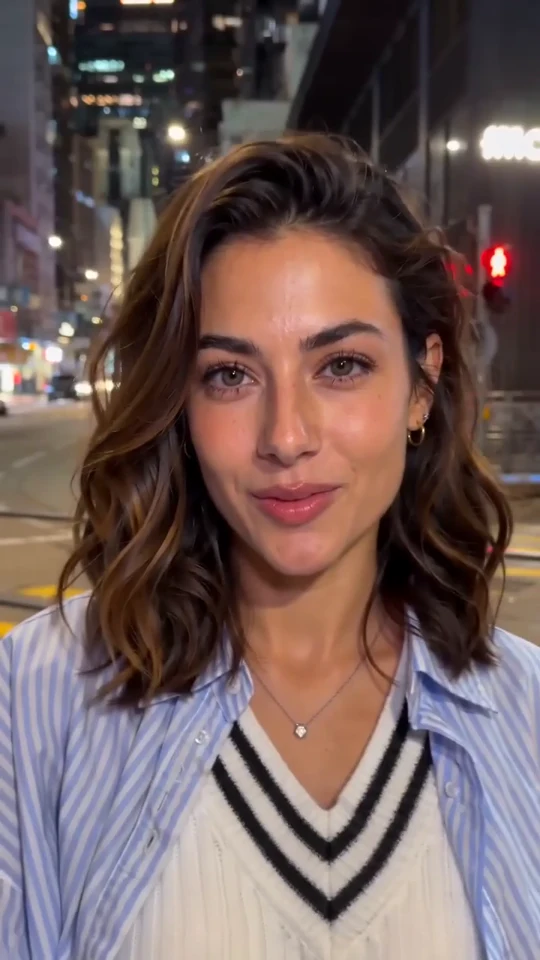
The airport transition begins at a departure gate. A thumb-and-index-finger ring approaches the lens, covers the edit, and reveals a city street at night with the traveler still in view.
Do I need an airport photo for the Airport Finger template?
A clear portrait of one adult works. The airport-to-city transition supplies both locations.
Which photos work best for the finger circle transition?
Choose a sharp JPG, PNG, or WebP under the upload limit, with one face in good light and enough space for the shoulders and hands. The source photo can show a relaxed pose.
Do I need a prompt or a reference video?
Upload one portrait. Airport Finger already includes the reference video for the ring, expression and arrival. An optional prompt can refine the lighting or atmosphere while the template guides the performance.
Can I change the destination?
The Airport Finger preset uses the city street from the reference video. Use the optional prompt to adjust the lighting or atmosphere within that scene. For a different destination, start in the TikTok video generator and describe both locations explicitly.
Is the airport transition vertical, and can I turn off sound?
Yes. Basic and Standard use 9:16 and eight seconds. Pro chooses framing and length automatically. Open Quality & sound to choose resolution or turn the original template audio off.
What if the hand or face changes at the cut?
Try a brighter single-person photo with space around the arms. Inspect the finger circle transition at the cut, then pause on the traveler after arrival.
Where do I see the credit cost?
The workbench shows the current credit amount for your Airport Finger settings. Confirm the amount before generating. A confirmed failed generation returns its credits under the site's credit-return rules. Starting another generation after a completed result uses the new quote.
Can I make the airport transition on my phone?
Yes. Use the phone-upload option on desktop to send a photo to the workbench. After a successful generation, the desktop result provides a download-to-phone option. On your phone, use the local file picker and download directly.
Can I publish the travel transition on YouTube Shorts?
Yes. The default airport transition is vertical. Review the cut and sound before uploading.
Sources
- AI Trend Club's airport transition walkthrough describes the gate, hand circle, reveal, and ending pose.
- AeroCorner's moving-walkway example shows how a hand or bag can cover an airport cut.
- iSpazio's hand transition tutorial demonstrates using the hand as an opening into another location.
- YouTube Help on uploading Shorts explains the accepted aspect ratios and upload steps.