

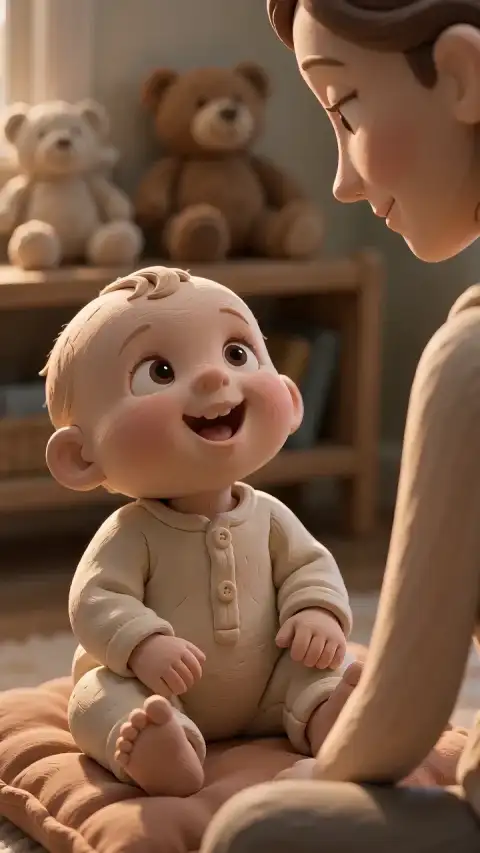
Make a short scene with a material in mind
Viral Video AI's AI animation generator creates one animated clip from text, with an optional reference image, video or both. Paper animation, clay and ink describe looks, not modes. The result is a rendered video, not an editable 3D model, rig or animation layers. Used alone, an image is submitted as a first-frame reference; a reference video guides a new clip rather than editing the original.
Match a material to an action
Choose a visible action for your animation prompt, then inspect the matching detail:
| Look | Action | Check |
|---|---|---|
| Paper animation | A folded roof opens along a crease. | Edges, folds and contact with the base. |
| Clay | A rounded character leans toward a flower. | Silhouette, surface marks and feet. |
| Ink | A dark line curls into a leaf. | Line thickness and final shape. |
Keep the camera steady for a fold in paper animation. For clay, show the feet during a lean. For ink, specify whether the line or camera moves. Give your animation prompt one event to check in the animated clip. Adobe's video prompting guide recommends describing style, action and camera movement for Firefly.
Prepare a reference image
Choose a reference image with clear texture and room to move. For paper animation, inspect cut edges. Crop or rotate the reference image beforehand; this tool has no image-cropping editor. For an image alone, describe what moves after the first frame. When pairing it with video, describe the action you want; the image guides appearance rather than setting the first frame. Without an image, describe subject, material, setting and action. A reference video guides a new animated clip; it does not guarantee frame-for-frame motion transfer or convert an entire movie into a cartoon.
Runway’s image-quality guide warns that input artifacts can become more pronounced in motion. Inspect the paper edges or clay face at full size before uploading.
Watch paper animation, then write your own brief
Paper after dark is an original AI demonstration, not a physical model. The editable animation prompt is an adapted paper-city brief, not the original production prompt. Applying it replaces your text without generating; results may differ.
A handcrafted terracotta and cream paper city unfolds from a flat sheet. Tiny amber windows light up as the camera glides through the miniature street. Tactile paper textures, one continuous shot.
Why choose this tool for a short animated scene?
Choose this AI animation generator when you want to explore one visual action without building a rig. Start from text or a reference image, use the paper animation example to shape your brief, and compare duration and resolution before generating. The editable animation prompt gives you a starting point; the animated clip lets you inspect the material in motion. For exact poses, layered delivery or a long narrated cartoon, plan a separate animation or editing project.
Create your animated clip
- Prepare the input. Write 3–2,000 characters. Your animation prompt can describe one action and camera view. To add a reference image or video, choose Add media and sign in. You can combine multiple images and one reference video. Images must be single-frame JPEG, PNG or WebP up to 10 MiB, at least 300 pixels per side and at most 36 million pixels. MP4/MOV references can be up to 20 MiB, 2–15 seconds for Basic or 2–30 seconds for Pro. Reference videos must contain a video track and be no more than 4,096 pixels per side.
- Set the output. Basic offers 4–15 seconds at 480p or 720p; Pro offers 4–30 seconds and adds 1080p. For an image used alone, the interface shows an adaptive ratio; otherwise choose one. Check the finished framing. Check Native audio.
- Review the credits. Review the displayed credits, then select Generate Video to start; sign in if prompted. Model, output duration, resolution and reference-video duration affect the estimate, which updates as you change your inputs or settings. See the video credit guide.
- Preview and download. Review the animated clip and sound, then download it. Publishing is separate.
Check each animated clip before adding scenes
Pause the animated clip near the start, middle and end. Check outlines, texture and contact: does a clay foot slide through the floor? In paper animation, look for a fold becoming a separate object or losing its connection to the base. Change one animation prompt detail at a time so you can compare the next result. A new attempt needs a new quote and cannot repair old frames. Keep the animation prompt alongside each download so you can compare the revised instruction with the resulting animated clip. Character and texture may vary between clips.
Edit the animated clip separately for exact cuts, captions or longer sequences. Native audio does not import your recording, clone a voice or guarantee lip sync. This tool has no timeline or caption editor.
Before planning a sequence
Choose the right workflow
What is an AI animation generator?
The AI animation generator makes rendered short scenes such as paper, clay or illustrated motion. The download is a video, not editable animation layers.
Can I make paper, clay or illustrated animation?
Yes. Describe the material and one visible motion, optionally with a reference. Style and physical detail can vary; this does not provide an exact artist-style match, rig or reusable layer stack.
Do I need a photo or a reference video?
Start with text, optionally add up to 9 photos with Basic or 30 with Pro, plus one reference video. A single image without video guides the first frame; multiple photos provide visual references. With a video, photos guide appearance while the video guides motion.
Can I use several characters and keep them consistent?
You can describe several characters and supply up to 9 photos with Basic or 30 with Pro, plus one video where supported. There are no separate identity controls for each character. Interaction, anatomy and continuity can change; one clear intended subject makes a simpler brief.
Prepare and generate
Can I control the background, camera and exact action timing?
Describe a background, one action and a camera move in the prompt. These guide a new scene rather than lock pixels or timestamps. There are no masking, subject-isolation or per-second motion controls, so check the entire result.
Prepare and generate
Which duration, resolution and aspect ratio can I choose?
Basic offers 4–15 seconds at 480p/720p; Pro offers 4–30 seconds and adds 1080p. The interface offers portrait, landscape and square choices where applicable. A single image without video uses an adaptive ratio; multiple images offer ratio choices.
Can I generate sound or upload my own song?
Native audio requests generated sound; turning it off requests silence. General tools have no separate song upload, exact voice matching, precise lip sync or beat mapping. Add licensed music and precise speech in an editor after download. Original reference soundtracks are not guaranteed, and there is no exported audio-mix or volume editor.
Can I generate a batch or a complete multi-shot film?
Each submission creates one short clip; there is no batch or automatic multi-shot assembly control. Generate separate shots and edit them together; each generation has its own quote and character continuity can vary.
Accounts, credits and task status
How much will one generation cost?
The creation area shows the current quote. Tier, output length, resolution and reference-video duration affect it; prepared template references can also count. Recheck the total after changing settings. Video Credit Guide
Save, share and protect your media
Can I export GIF, MOV, SRT subtitles, transparent video or editable projects?
The download action provides a rendered MP4. There is no GIF/MOV selector, SRT subtitle file, alpha-channel export, layered project or editable timeline export. Convert or assemble the downloaded clip in a separate editor if needed. Separate audio stems are not exported.
Before retrying or sharing
Confirmed failures or confirmed cancellations without a usable result return task credits, subject to reconciliation with cash refunds; dissatisfaction alone is not automatically a failure. Check the original task after a wait or network interruption before retrying. Returned credits keep their original expiry; expired credits remain unavailable. Cash refunds follow the separate refund policy.
Use permitted references and obtain consent from people shown. Product access to inputs and results is restricted to your account by default; an accessible direct storage URL can also expose a file; providers process task inputs. See the privacy policy. Sharing is separate.
YouTube’s AI disclosure guidance distinguishes clearly unreal animation from realistic altered scenes. Check sound separately, including generated music that is the video’s main focus, when deciding whether disclosure is required.