
Start with a cat, then choose the moment
Viral Video AI's AI cat video generator makes a new short clip from a written idea, optionally with a cat photo, one reference video or both. Make a small reaction or a fantasy scene; the creation area also accepts other animals.
Choose text to invent a cat and setting. A cat photo alone is submitted as a first-frame reference; markings and anatomy can change. A reference video guides a new cat clip, not an edit or exact motion copy. Combine both to guide appearance and movement.
Give one small action room to happen
Write a motion prompt with one recognizable event. Try a blink, an ear twitch, or a slow head turn before asking for a chase or several animals interacting. Choose movement that fits the pose in your cat photo. A close-up leaves little room for a full-body leap.
- Appearance: For a text-only cat clip, describe coat, setting, and style. For a cat photo, check those details before uploading.
- Action: Give your cat video one visible action: “The tabby slowly looks toward the window.” Then check for that action.
- Framing: Leave space around moving ears, paws, and the tail. Say whether the camera stays still or moves; avoid asking it to do both.
Runway's image-to-video prompting guide separates the image's visual information from the text's motion instructions and recommends starting simply, then refining.
Explore an imaginary cat scene
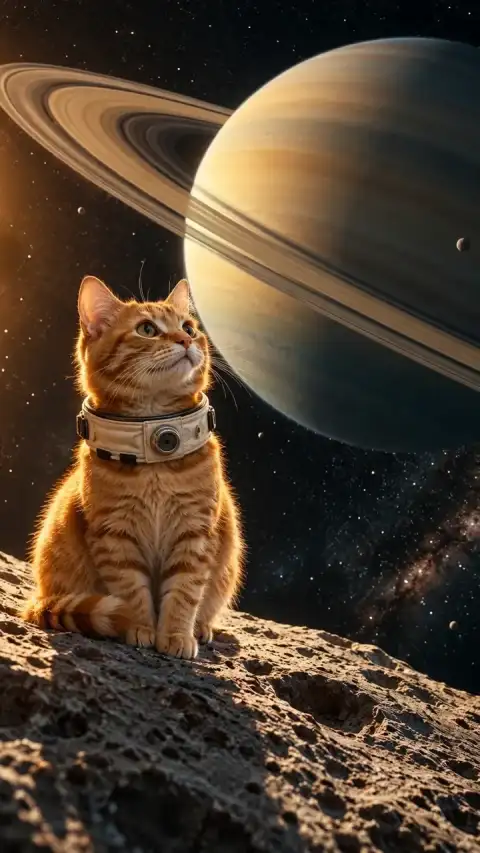
Cosmic curiosity is an existing original AI cat video demonstration. Adapt its motion prompt for your cat photo; the result may differ.
An orange tabby cat in a tiny astronaut collar sits on a moon rock beneath Saturn. The cat slowly looks up, ears twitch in curiosity, dust floats in soft amber light. One continuous shot.
Explore the Cosmic Cat template for a ready-to-edit space scene.
Make your cat video
- Prepare your starting point. Write an idea. To add reference photos, one reference video or both, use Add media and sign in when asked. A cat photo must be a single-frame JPEG, PNG, or WebP up to 10 MiB, with both dimensions at least 300 pixels and no more than 36 million pixels total. MP4/MOV references may be up to 20 MiB: Basic accepts 2–15 seconds; Pro accepts 2–30 seconds. Trim longer footage before uploading. Reference videos must contain a video track and be no more than 4,096 pixels per side.
- Describe the change. Enter a motion prompt of 3–2,000 characters. With a cat photo used alone, focus on what moves after the opening frame. With a photo and video together, describe the intended action; the photo guides appearance. For a text-only cat video, include the subject and setting as well as the action.
- Choose the output. Basic offers 4–15 seconds at 480p or 720p. Pro offers 4–30 seconds and adds 1080p. For a validated image used alone, the interface shows an adaptive ratio; check the finished framing. For text or video input, choose an available aspect ratio. Choose whether to include Native audio.
- Review the credits. Review the displayed credits, then select Generate Video to start; sign in if prompted. Model, output duration, resolution and reference-video duration affect the estimate, which updates as you change your inputs or settings. See the video credit guide.
- Preview and download. When the cat clip is ready, play it from beginning to end. Check the picture and sound before downloading. The generator does not automatically post the cat video to your social accounts.
Check your cat video for paws, markings, and edges
Play the cat clip. Check paw contact, tails merging into furniture, changing markings, extra limbs, and jumping backgrounds. In an illustrated cat video, check the silhouette and action.
If a cat photo starts with hidden paws, try a smaller movement or prepare a clearer source. Change one part of the motion prompt at a time so you can tell what changed. A new attempt generates another cat clip and receives a new quote; it does not repair a few selected frames inside the old one.
Choose it for one original cat moment
Use Viral Video AI when you want a pet reaction or imaginary cat clip with an editable brief. Your cat photo supplies a starting appearance; the original cosmic-cat example supplies a fantasy idea. Duration, quality, and the credit quote let you review the scope before committing. For a multi-shot cat video, budget separate generations and editing. Start with your cat idea.
Before another attempt or a public share
If generation fails, or cancellation is confirmed without a usable result, the task credits return. Disliking a completed cat clip does not automatically make the task a failure. A network interruption also does not establish failure: check the original task before paying for another attempt. Credit returns and payment refunds are separate processes; consult the refund and credit return policy. Returned credits keep their original expiry; expired credits remain unavailable. If the purchase funding the task was refunded in cash, the credit return may be reconciled against that refund.
Use a cat photo or reference you have the right to upload, with consent from any people shown. Product access to source media and completed videos is restricted to your account by default; an accessible direct storage URL can also expose a file, while the generation providers involved process the inputs needed for the task. Sharing requires a separate action. Read the privacy policy before submitting a personal photo or publishing a cat video.
To assemble several cat moments, download the clips and follow Adobe Express’s video editing guide for ordering scenes and adding text. Before sharing on YouTube, review both the cat footage and generated soundtrack using YouTube’s AI disclosure guidance.
Questions before your first cat clip
Choose the right workflow
What is an AI cat video generator?
The AI cat video generator makes a short real-looking or imaginary cat scene. Start with words or guide appearance and motion with authorized media.
Do I need a photo or a reference video?
Start with text, optionally add up to 9 photos with Basic or 30 with Pro, plus one reference video. A single image without video guides the first frame; multiple photos provide visual references. With a video, photos guide appearance while the video guides motion.
Will the result exactly match my reference?
No exact match is guaranteed. Appearance, motion, lettering and audio can vary. Start with a clear source and one simple action, then inspect the entire finished clip before sharing or buying another attempt.
Can I use a photo with several cats or people?
Multiple reference images are accepted: up to 9 with Basic or 30 with Pro. For a clearer cat scene, use clear views of the intended cat and remove distracting subjects. Multiple characters, interactions and exact identity continuity are not guaranteed.
Prepare and generate
Can I control the background, camera and exact action timing?
Describe a background, one action and a camera move in the prompt. These guide a new scene rather than lock pixels or timestamps. There are no masking, subject-isolation or per-second motion controls, so check the entire result.
Prepare and generate
Can I generate sound or upload my own song?
Native audio requests generated sound; turning it off requests silence. General tools have no separate song upload, exact voice matching, precise lip sync or beat mapping. Add licensed music and precise speech in an editor after download. Original reference soundtracks are not guaranteed, and there is no exported audio-mix or volume editor.
Can I generate a batch or a complete multi-shot film?
Each submission creates one short clip; there is no batch or automatic multi-shot assembly control. Generate separate shots and edit them together; each generation has its own quote and character continuity can vary.
Which duration, resolution and aspect ratio can I choose?
Basic offers 4–15 seconds at 480p/720p; Pro offers 4–30 seconds and adds 1080p. The interface offers portrait, landscape and square choices where applicable. A single image without video uses an adaptive ratio; multiple images offer ratio choices.
Accounts, credits and task status
How much will one generation cost?
The creation area shows the current quote. Tier, output length, resolution and reference-video duration affect it; prepared template references can also count. Recheck the total after changing settings. Video Credit Guide
Save, share and protect your media
Where can I find and download my finished video?
Open the completed task in the creation area or My Videos, play the result and use Download. Save your own copy for later editing or posting. Samples are examples, not your personal task output. The download is an MP4 file. My Videos