

Animate the product you actually sell
The AI product video generator turns one product photo and a motion brief into a short showcase. The image is a first-frame reference for a newly generated clip, useful for exploring lighting or a camera movement. A product video is a visual draft, not proof of dimensions, materials, or performance.
An image is required. This tool does not import store URLs, combine reference views, or assemble a finished advertisement. Keep approved photographs and the real item available for review.
Choose a shot your photo can support
Start with a sharp product photo showing current packaging. Check for glare, blurred lettering and missing edges; leave space around the item in your intended opening composition. Choose one camera movement or lighting change:
- Front view: a gentle push-in keeps the label and silhouette in view.
- Surface: moving light explores the finish; check reflections for invented markings.
- Visible edge: a small orbit explores depth already shown in the product photo. A full turn reveals unphotographed surfaces that still need verification.
Runway's Image to Video Prompting Guide assigns appearance to the image and motion to the text, recommending a simple starting prompt.
Watch a product lighting study
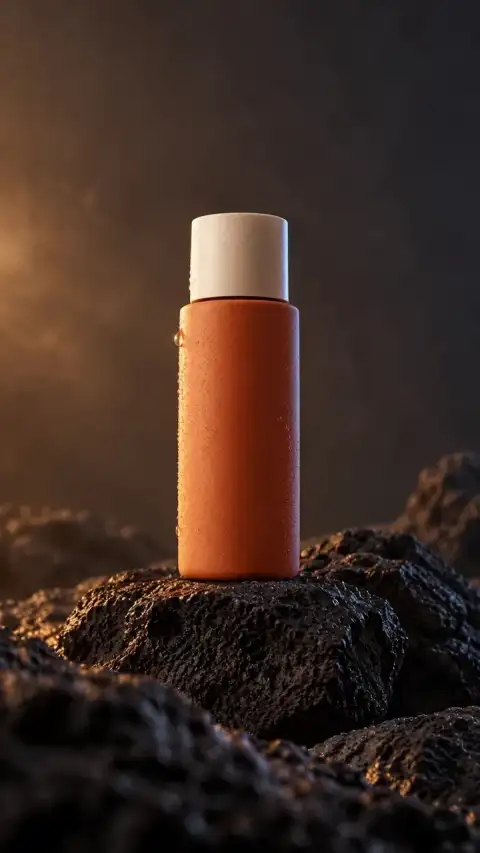
Amber product study is an original AI bottle demonstration. The editable brief is a separate starting idea for your own product photo, not its original production prompt. It cannot guarantee reproduction or preservation of product details.
The camera makes a gentle, slow push toward the product in the photo. The product stays stationary and front-facing under warm side light. One continuous shot; no added objects or lettering.
Why choose this tool for a single product shot?
Choose Viral Video AI when you have an approved product photo and want to explore one lighting or camera idea. The bottle example makes that scope visible; its editable brief gives you a concrete starting point. You can change the direction before committing, then select duration and quality and inspect the credit quote before generating.
This keeps an individual product video separate from a full campaign edit. Exact packaging, unseen angles and functional demonstrations need verified material; captions and assembly require another editor. Start with one shot you can compare against the actual item.
Make your product video
Prepare one approved image and decide which visible product details matter. Then use the controls above:
- Add the photo. Choose Add Media and sign in when asked. Upload one single-frame JPEG, PNG or WebP, up to 10 MiB; each dimension must be at least 300 pixels, with at most 36 million pixels total. Reference videos are not accepted here.
- Describe the shot. Enter 3–2,000 characters describing motion after the first frame. Applying the example replaces the brief, without uploading an image or starting generation.
- Set the output. Basic offers 4–15 seconds at 480p/720p; Pro offers 4–30 seconds and adds 1080p. The validated product photo uses an adaptive ratio; check the finished crop. Native Audio does not import a recording or clone a voice.
- Review the credits. Review the displayed credits, then select Generate Video to start; sign in if prompted. Model, output duration, resolution and reference-video duration affect the estimate, which updates as you change your inputs or settings. See the video credit guide.
- Inspect and download. Play the product video and audio throughout. Compare product details against the photo and actual item, including close-ups and changes in angle. Save a suitable result with Download; publishing is separate.
Check accuracy before style
Pause the product video at close-ups, turns and obstructions, with the product photo beside it:
| Check | Compare with the item | If it changes |
|---|---|---|
| Outline and parts | Shape, cap, seams, handles and accessory count | Simplify the camera movement or change the product photo. |
| Label and color | Brand spelling, symbols, printed claims and color placement | Reject inaccurate packaging; replace affected footage. |
| Material and function | Finish, openings, contents and use | Verify against the actual item; generated action is not a test. |
If the camera movement introduces errors, consider a simpler brief and a new quote. If the label or geometry still drifts, switch to real footage or animate the approved still in an external editor. Adding a correct caption does not correct an inaccurate package.
Changing the brief creates another product video, not repairs to selected frames. Add exact prices, offer dates, cuts, captions, music or voiceover separately. There is no timeline or caption editor here; generated audio does not guarantee exact words.
For US advertising, the FTC’s digital advertising disclosure (PDF) guidance evaluates imagery as part of the overall claim. Check whether generated product movement implies a feature or result the real item cannot deliver.
Before choosing a product shot
Choose the right workflow
What is an AI product video generator?
The AI product video generator turns product photos into a short display shot. It cannot verify product specifications, accurately reconstruct unseen sides or prove an advertised effect.
Do I need a photo or a reference video?
At least one photo is required. Basic accepts up to 9 photos; Pro accepts up to 30. Use clear views of the intended subject. This page does not accept a user-supplied reference video; multiple photos are references, not a timed slideshow.
Will my logo, label and product shape stay accurate?
No. AI can alter lettering, proportions or packaging. Use a clear photo, inspect every visible claim and keep verified logos, labels and prices as separate graphics in your final edit.
Prepare and generate
Which photo formats and sizes are accepted?
Use static JPEG, PNG or WebP files, each up to 10 MiB, at least 300 pixels per side and at most 36 million pixels. Basic accepts up to 9 images; Pro accepts up to 30. Choose sharp, unobstructed views of the intended subject.
Can I control the background, camera and exact action timing?
Describe a background, one action and a camera move in the prompt. These guide a new scene rather than lock pixels or timestamps. There are no masking, subject-isolation or per-second motion controls, so check the entire result.
Prepare and generate
Which duration, resolution and aspect ratio can I choose?
Basic offers 4–15 seconds at 480p/720p; Pro offers 4–30 seconds and adds 1080p. A single image uses an adaptive ratio; multiple images offer ratio choices. Check the final framing.
Accounts, credits and task status
How much will one generation cost?
The creation area shows the current quote. Tier, output length, resolution and reference-video duration affect it; prepared template references can also count. Recheck the total after changing settings. Video Credit Guide
Save, share and protect your media
Can I add captions, trim clips or edit individual frames here?
This workflow generates a rendered clip, not an editable timeline, layered project or 3D model. Download it to trim, assemble scenes, add exact text or adjust individual details in a suitable editor.
Can AI scenes serve as real testimonials or proof of product results?
No. A generated scene does not document actual customer use or a verified before-and-after result. Use authentic authorized testimonials and independently checked claims; do not present fictional generated events as real evidence.
Where can I find and download my finished video?
Open the completed task in the creation area or My Videos, play the result and use Download. Save your own copy for later editing or posting. Samples are examples, not your personal task output. The download is an MP4 file. My Videos
Before retrying or sharing
Failed generation or confirmed cancellation without a usable result returns task credits. Disliked style, changed product details or disconnection alone do not establish failure; check the original task. Returns retain expiry, so expired credits remain unavailable; cash refunds may require reconciliation. See the refund policy.
Use product photos and brand assets you have rights to, with consent for identifiable people. Product access defaults to your account; accessible storage links can expose files and generation providers process necessary inputs. Sharing is separate. Check the privacy policy before uploading unreleased material and review rights for your finished product video.
When a TikTok post promotes your product, turn on its commercial-content disclosure setting as described in TikTok’s promotional-content guidance. Complete that step when publishing the reviewed product clip.