

Turn a promotional idea into one visual clip
Viral Video AI's AI promo video generator makes a short promotional video from text, optionally guided by a reference image, a reference video or both. Use it for a product reveal, an atmospheric event teaser or a visual behind an offer. The output is a rendered clip; add approved offer text in a separate editor after downloading.
A generated promo video is not proof of a product's materials, performance or availability. This page does not import shop URLs, assemble a campaign timeline or place ads. Choose a finished-ad editor when you need those tasks together.
Why choose this tool for a promotional shot?
Choose Viral Video AI if you already have the campaign facts and need a new promo video to edit around them. Start with text for an imagined setting, a product photo for an opening view, or a reference video to guide motion. This lets you explore the shot separately from the wording you have approved.
The promo video sample below shows the scope before you commit. Apply its editable brief, change the scene, then inspect duration, quality and the credit quote before generating. You can judge whether this single-shot workflow fits your promotion. It still requires product review and another editor for precise offer text, branding, cuts or supplied music.
Watch a visual, then adapt the brief
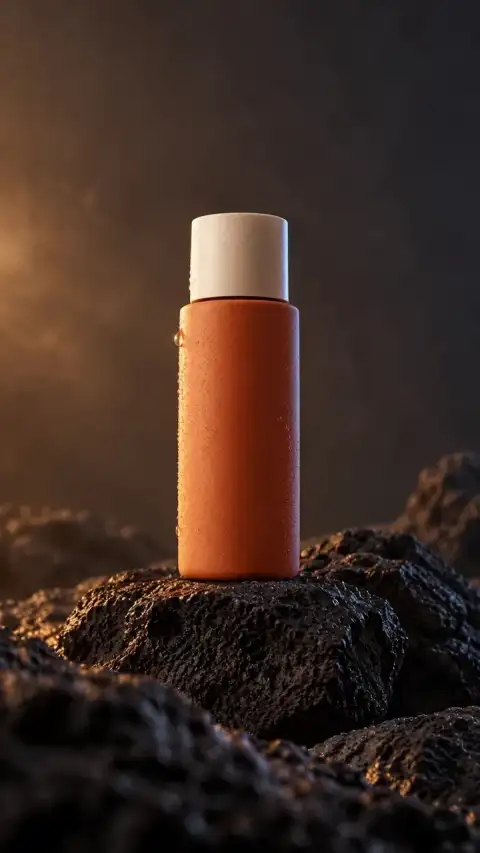
Amber product study is an original AI bottle demonstration: warm light crosses an orange bottle on dark stone. It shows a mood, not an actual sale. The suggested prompt is an adapted exercise, not the original production input or a promise to reproduce the sample.
An unbranded terracotta-orange bottle on dark volcanic stone, slow subtle camera orbit, a warm spotlight moving across the matte surface, no added lettering, one continuous shot.
For your promo video, replace the bottle with your subject and request one movement. Leave space for later offer text, but inspect the result: a prompt does not guarantee an empty text area. Applying the brief replaces your text without uploading media or starting generation.
Choose the input that supports your shot
For a promo video, text alone can create a fictional setting. For an actual item, use a clear, authorized product photo and keep the real item available for comparison. A reference image used alone guides the first frame; the interface uses an adaptive ratio after validation. Later details can change.
A reference video guides a newly generated promo video; it does not automatically cut down the uploaded footage. With both inputs, the reference image guides appearance and the reference video guides movement. Neither locks a label or guarantees exact motion transfer. Upload only media you can use for this purpose; avoid confidential campaign material you cannot share for processing.
Generate, inspect and save your promo video
Prepare one visual action and keep the factual offer sheet separate. Use the promo video composer above:
- Add your brief and optional media. Enter 3–2,000 characters. Add Media accepts one static JPEG, PNG or WebP: up to 10 MiB, at least 300 pixels per side and at most 36 million pixels total. MP4/MOV references need a video track, up to 20 MiB and 4,096 pixels per side; Basic accepts 2–15 seconds, Pro 2–30. Sign in when asked and wait for validation. On desktop, Send Photo/Video opens the phone upload flow; receiving a file does not generate a clip.
- Choose the output. Basic offers 4–15 seconds at 480p/720p; Pro offers 4–30 seconds and adds 1080p. Choose a ratio unless a validated image alone makes it adaptive. Native Audio is optional; it does not import your recording or guarantee a particular song or spoken line.
- Review the credits. Review the displayed credits, then select Generate Video to start; sign in if prompted. Model, output duration, resolution and reference-video duration affect the estimate, which updates as you change your inputs or settings. See the video credit guide.
- Review and download. Watch the promo video throughout, checking labels, shape, accessories and audio. Save a suitable result with Download; desktop results also offer Download to Phone. On mobile, upload and download directly. Add your offer text in another editor, then inspect that exported promotional video on the intended viewing device.
If the connection drops, check the original task in My Videos before retrying. A fresh generation needs its own quote.
Finish the offer as carefully as the visual
| Part | Check before publishing |
|---|---|
| Visual | Compare the actual item with the opening, middle and ending. Remove misleading features or unsupported demonstrations. |
| Offer text | Add the verified price, currency, eligible variant, conditions and expiry date/time zone in your editor. |
| Final export | Check readable wording, unobstructed placement and audio; make sure the linked offer and checkout agree. |
For US advertising, the FTC's digital advertising disclosure guidance considers pictures as well as words and addresses clear, conspicuous online disclosures. Accurate offer text cannot make a misleading product depiction accurate. These checks help your review; the generator does not establish compliance or platform approval.
A confirmed failure or cancellation without a usable result returns task credits, subject to reconciliation with cash refunds. Credits retain their original expiry; expired credits remain unavailable. A completed promo video is not automatically failed because its style disappoints. Read the refund and credit-return policy. For a photo-required showcase, use the product video tool; for a material-led scene, try the animation tool.
For TikTok, enable TikTok’s commercial-content disclosure when the post promotes a brand, product or service. If you run the clip as an ad, its separate TikTok AI advertising disclosure rule requires disclosure for fully generated or significantly AI-edited media. Review both settings for the campaign.
Questions before you publish
Choose the right workflow
What is an AI promo video generator?
The AI promo video generator makes a short promotional visual from your idea or media. You supply and verify the offer, claims, price and final advertising copy.
When should I choose this workflow?
Choose it to visualize a promotional idea. Product Video is better matched to a required product-photo starting point; neither tool validates offers or guarantees advertising performance.
Do I need a photo or a reference video?
Start with text, optionally add up to 9 photos with Basic or 30 with Pro, plus one reference video. A single image without video guides the first frame; multiple photos provide visual references. With a video, photos guide appearance while the video guides motion.
Can it write a verified offer, price or product claim for me?
No. Supply your own verified offer and claims. Generated text can be inaccurate; add exact prices, dates, disclaimers and calls to action in an editor and review them before publication. Regulated product claims and required disclosures need your own appropriate review.
Prepare and generate
Can I control the background, camera and exact action timing?
Describe a background, one action and a camera move in the prompt. These guide a new scene rather than lock pixels or timestamps. There are no masking, subject-isolation or per-second motion controls, so check the entire result.
Prepare and generate
Can I generate sound or upload my own song?
Native audio requests generated sound; turning it off requests silence. General tools have no separate song upload, exact voice matching, precise lip sync or beat mapping. Add licensed music and precise speech in an editor after download. Original reference soundtracks are not guaranteed, and there is no exported audio-mix or volume editor.
Accounts, credits and task status
How much will one generation cost?
The creation area shows the current quote. Tier, output length, resolution and reference-video duration affect it; prepared template references can also count. Recheck the total after changing settings. Video Credit Guide
Save, share and protect your media
Can AI scenes serve as real testimonials or proof of product results?
No. A generated scene does not document actual customer use or a verified before-and-after result. Use authentic authorized testimonials and independently checked claims; do not present fictional generated events as real evidence.
Can I add captions, trim clips or edit individual frames here?
This workflow generates a rendered clip, not an editable timeline, layered project or 3D model. Download it to trim, assemble scenes, add exact text or adjust individual details in a suitable editor.
Can I use the result for business or advertising?
Generation does not clear rights or approve an ad. Confirm permission for input images, people, footage, music and brands, and review the result and destination-platform rules before commercial use. Terms of Service