
Turn an idea into a short visual joke
Viral Video AI's funny AI video generator creates a new scene from a written prompt, optionally with one reference image, one video or both. Make a small reaction or unexpected situation, rather than a finished meme with captions and cuts.
Text invents the subject and setting. A reference image alone is submitted as a first frame; appearance may change. Video guides a new comedy clip, not an edit or exact motion copy. Combine both to guide appearance and movement.
Give the visual joke a readable sequence
Before writing a video prompt, describe three things the viewer should understand:
Setup
Show one subject and an ordinary intention.
Surprise
Introduce one harmless interruption or impossible detail.
Reaction
Leave the subject visible long enough to read its response.
Build the visual joke around what can be seen, not an abstract instruction to “be hilarious.” A reference image should leave room for the action. Keep the camera quiet if an expression carries the joke; several simultaneous movements make the comedy clip harder to assess.
Runway's text-to-video prompting guide separates visual descriptions from motion and recommends starting simply.
Watch a reaction, then try another idea
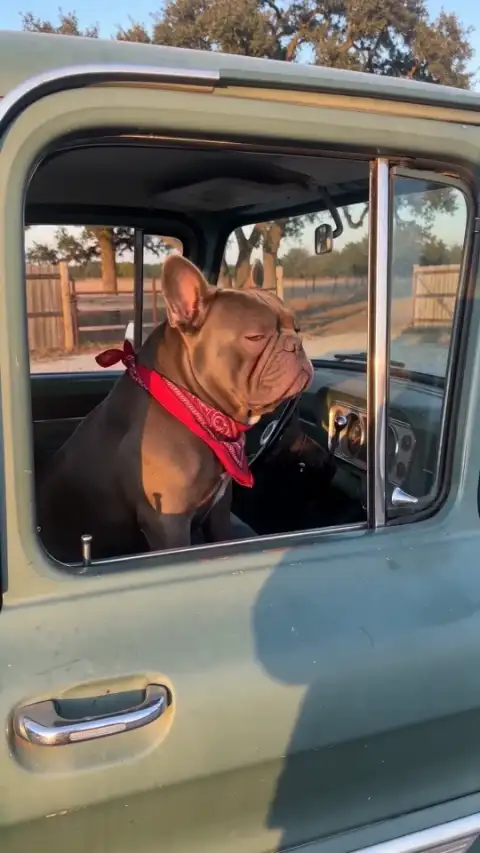
Pickup pet reaction is an original AI demonstration. The dog acts like a serious parking attendant: watch its turn, squint, and paw on the window. The shorter video prompt below adapts that situation; it is not the original full prompt or a reproduction guarantee.
At an open window of a parked green pickup, a bulldog in a red bandana turns toward the camera, squints and rests a paw on the sill as if guarding its parking spot. Warm afternoon light, one continuous eye-level shot.
Make your comedy clip
- Choose the starting point. Write an idea. To add media, select Add media and sign in when asked. A reference image must be a single-frame JPEG, PNG, or WebP up to 10 MiB, with both dimensions at least 300 pixels and no more than 36 million pixels total. MP4/MOV references may be up to 20 MiB: Basic accepts 2–15 seconds; Pro accepts 2–30 seconds. Prepare a shorter file before uploading if needed. Reference videos must contain a video track and be no more than 4,096 pixels per side.
- Write the video prompt. Enter 3–2,000 characters. With an image used alone, describe what changes after the opening frame. With an image and video together, describe the action you want; the image guides appearance rather than setting the first frame. Without an image, add the subject, setting, and camera direction. Keep the visual joke to one connected event.
- Choose the output. Basic offers 4–15 seconds at 480p or 720p. Pro offers 4–30 seconds and adds 1080p. For a validated image used alone, the interface shows an adaptive ratio; otherwise choose an available ratio. Check the finished framing. Check Native audio before requesting the comedy clip.
- Review the credits. Review the displayed credits, then select Generate Video to start; sign in if prompted. Model, output duration, resolution and reference-video duration affect the estimate, which updates as you change your inputs or settings. See the video credit guide.
- Preview and download. Play the comedy clip from beginning to end, including its sound. Download after checking the result. The funny AI video generator does not automatically publish to your social accounts.
Check whether the surprise actually lands
Watch the comedy clip without relying on your video prompt. Can you recognize the setup before the surprise? Does the reaction stay visible? Check hands, paws, props, and contact with surrounding objects; a visual error can obscure the intended visual joke.
If the action is missing or rushed, simplify one part of the video prompt or try a reference image with a more suitable pose. A new attempt receives a new quote and generates another comedy clip; it does not repair selected frames in the old result.
If the action is usable but the pause drags, keep the comedy clip and trim it externally. Regenerate when the reaction itself is missing. Multiple scenes need separate assembly and appearance checks; character identity is not locked.
If the reaction is usable but the lead-in drags, trim the downloaded clip in an editor. Adobe Express’s trimming guide shows how to set its start and end times.
Choose it for a new visual reaction
Viral Video AI fits a visual joke that needs an invented scene or an animated reference image. Adapt the parked-pickup example or write your own video prompt; choose duration and quality, then review the quote before generating. You can inspect one comedy clip before building a larger edit. Precise captions and pauses still need an editor.
Before retrying or sharing
If generation fails, or cancellation is confirmed without a usable result, the task credits return. A completed comedy clip that does not match your taste is not automatically a failed task. A network interruption or long wait does not prove failure either: check the original task before starting another. Credit returns and payment refunds are separate; read the refund and credit return policy. Returned credits keep their original expiry; expired credits remain unavailable. If the purchase funding the task was refunded in cash, the credit return may be reconciled against that refund.
Use a reference image or video you have the right to upload, with consent from people shown. A visual joke should not depend on impersonating someone or depicting them without permission. Product access to source media and completed videos is restricted to your account by default; an accessible direct storage URL can also expose a file; generation providers process the inputs needed for the task. Sharing requires a separate action. Review the privacy policy, and use music you have permission to include when editing your comedy clip.
TikTok requires labels for realistic AI-generated content. Check a lifelike pet reaction or fictional incident against TikTok’s AI labeling guidance before uploading.
Questions before generating
Choose the right workflow
What is a funny AI video generator?
The funny AI video generator makes a new visual joke or reaction scene from your brief. It does not search for viral memes or guarantee that a joke will land.
How do I make the joke easier to understand?
Describe one setup, one surprising change and one reaction, keeping the frame uncluttered. Exact comic timing is not guaranteed; review the clip and refine one instruction before another paid attempt.
Can I use several characters and keep them consistent?
You can describe several characters and supply up to 9 photos with Basic or 30 with Pro, plus one video where supported. There are no separate identity controls for each character. Interaction, anatomy and continuity can change; one clear intended subject makes a simpler brief.
Will the result exactly match my reference?
No exact match is guaranteed. Appearance, motion, lettering and audio can vary. Start with a clear source and one simple action, then inspect the entire finished clip before sharing or buying another attempt.
Prepare and generate
What should I include in my video prompt?
Describe one subject, one visible action and a camera move within 3–2,000 characters. Match the motion to your reference and remove conflicting instructions. You can adapt an example or an AI-written draft, but review it yourself before generating.
Prepare and generate
Can I control the background, camera and exact action timing?
Describe a background, one action and a camera move in the prompt. These guide a new scene rather than lock pixels or timestamps. There are no masking, subject-isolation or per-second motion controls, so check the entire result.
Can I generate sound or upload my own song?
Native audio requests generated sound; turning it off requests silence. General tools have no separate song upload, exact voice matching, precise lip sync or beat mapping. Add licensed music and precise speech in an editor after download. Original reference soundtracks are not guaranteed, and there is no exported audio-mix or volume editor.
Accounts, credits and task status
How much will one generation cost?
The creation area shows the current quote. Tier, output length, resolution and reference-video duration affect it; prepared template references can also count. Recheck the total after changing settings. Video Credit Guide
Save, share and protect your media
Can I add captions, trim clips or edit individual frames here?
This workflow generates a rendered clip, not an editable timeline, layered project or 3D model. Download it to trim, assemble scenes, add exact text or adjust individual details in a suitable editor.
Where can I find and download my finished video?
Open the completed task in the creation area or My Videos, play the result and use Download. Save your own copy for later editing or posting. Samples are examples, not your personal task output. The download is an MP4 file. My Videos