Angel or Devil Filter AI Video Generator
Turn one selfie into a video where angel and devil scores race above your head. Choose the halo or the horns.
Make your reveal
How the effect works
What Is the Angel or Devil Filter?
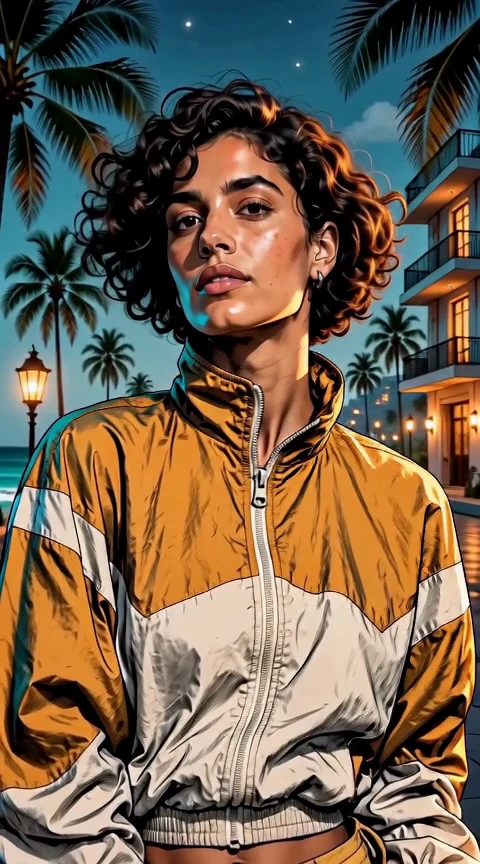
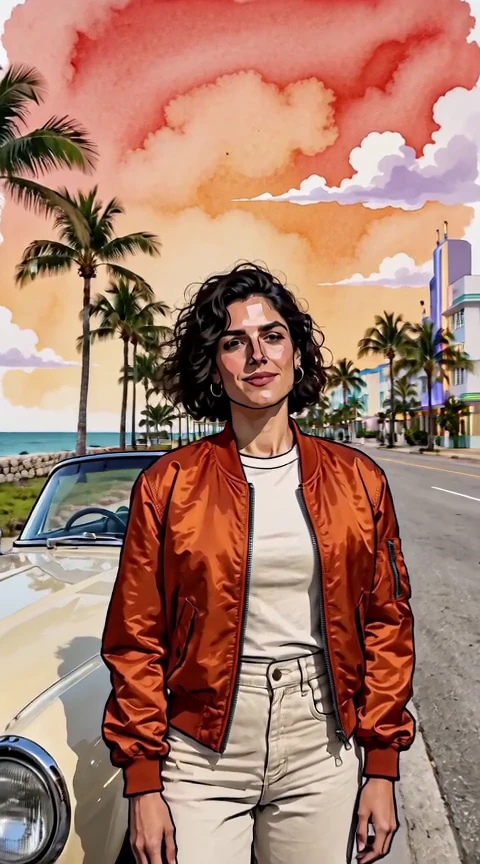
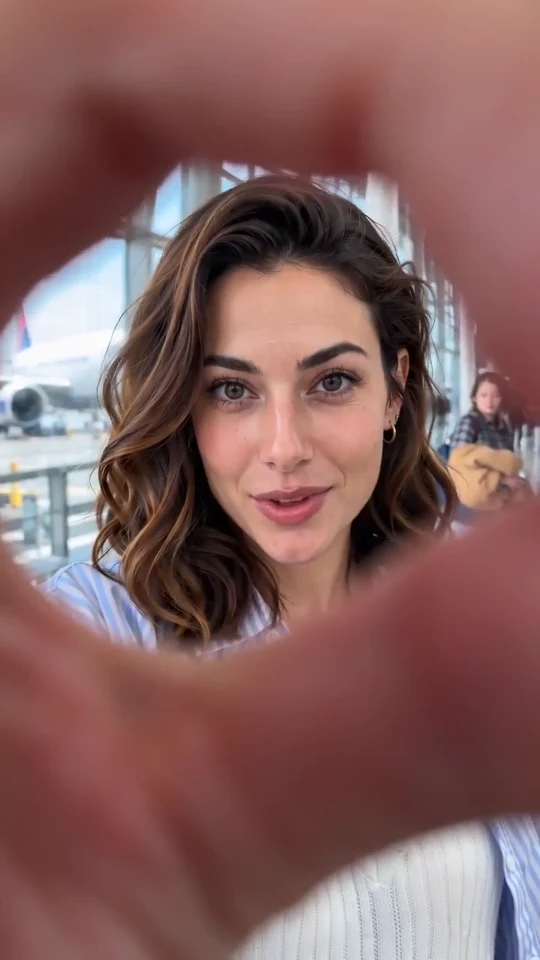
The Angel or Devil Filter is an animated selfie effect. Two percentages race above a portrait, then the scene resolves into a halo or horns. Viral Video AI creates a new clip from one image with the ending you choose. The meter is part of the performance. AI Trend Club · Angel or Devil Video Tutorial
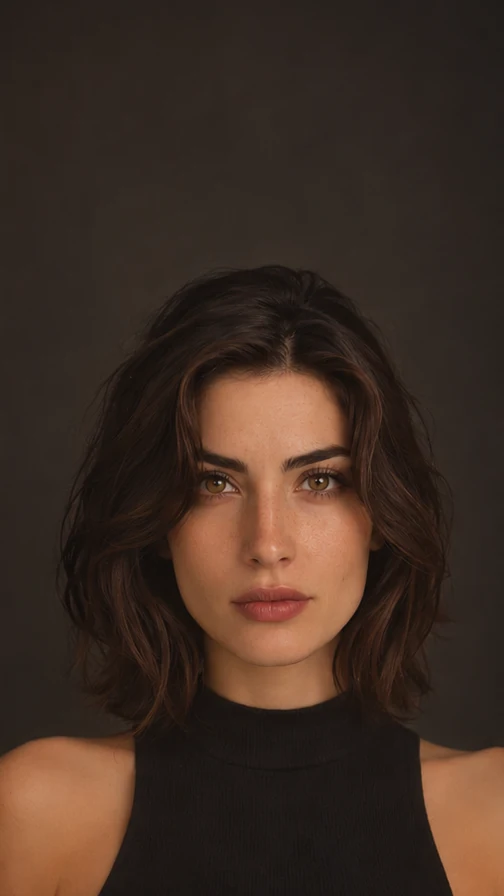
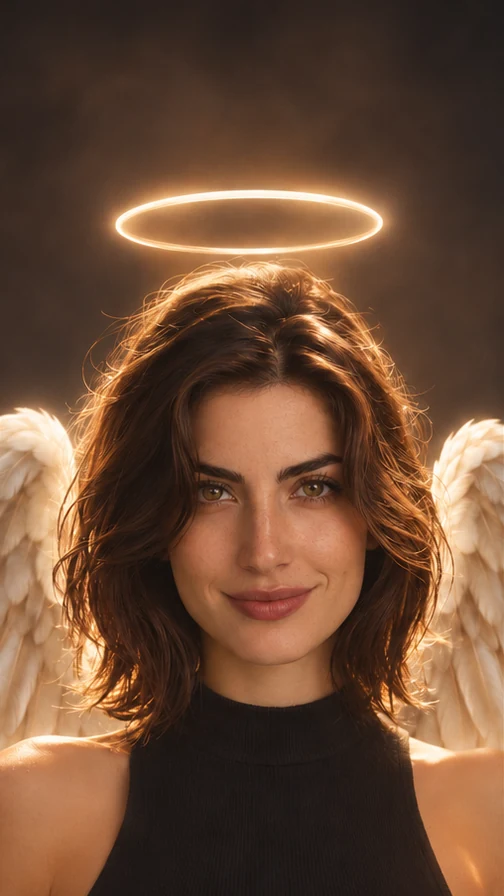
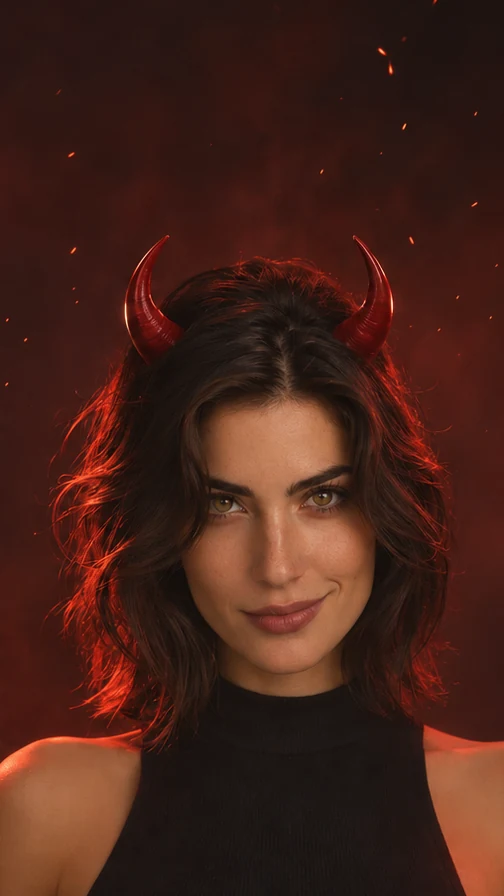
The suspense comes from the moving meter and the first glance up at it. Keep the area above the head clear so the reveal has somewhere to land. A bright window in that part of the selfie can compete with the light graphics. The portrait examples above show how much space you can leave. NextReel · Riding the Angel or Devil Filter Trend
How do you make the effect from one photo?
Start with one clear selfie of yourself or an adult who agreed to be included. Aim for an unobstructed face and an upright crop. The uploader accepts a JPG, PNG or WebP up to 10 MiB, at least 300 × 300 px and at most 36 megapixels. If the selfie is cropped tightly, use the uncropped version to give the meter room.
Lite starts at 480p. Basic and Standard also offer 720p. These three tiers use an 8-second vertical video format. Pro includes a 1080p option and automatically determines duration and framing. Check the credit quote beside the Generate Video button after choosing settings, then sign in to create your clip.
Make Your RevealChoose the ending
Pick Angel for a halo or Devil for red horns. The preview shows the selected ending. You can switch sides with the same selfie still attached.
Check the portrait
Upload your image or load the sample to see a suitable crop. On desktop you can also send a photo from your phone. Review the selfie thumbnail before you generate.
Generate and review
Decide whether to generate sound, then make the clip. Watch the meter and pause on the final reveal. Look for legible digits and enough separation between the graphics and the hair.
Save the result
Download the finished file or send it to your phone using its QR download option on desktop. Play the downloaded vertical video before adding music or captions.
Plan the punchline
When should you pick the halo or the horns?
Choose Angel when the joke depends on a soft payoff, such as a worried look that turns into a relieved smile. Choose Devil for a quick reversal, such as a selfie that starts innocent and ends in red light. With both endings available in one template, you can compare two generated clips with the same selfie, crop and settings.
The benefit of this Angel or Devil Filter is knowing the intended ending and seeing the credit quote before you spend. The animation can still vary between clips. Play the finished video with sound off to see whether the meter alone sets up the punchline. If exact digits matter to the joke, add those digits in a video editor after download. MemeRemake · Halo or Horns Reveal Guide
For a vertical video on Shorts, check the framing in the upload preview before publishing. Keep captions away from the meter above the forehead and leave the final expression visible long enough to read. YouTube accepts square or vertical uploads as Shorts when the video meets its length requirements. YouTube Help · Upload YouTube Shorts
Angel or Devil Filter FAQ
Can I choose Angel or Devil before generating?
Yes. Select Angel for a gold halo and pale wings, or Devil for red horns and ember lighting. You can use the same selfie to make two separate clips. Switching endings keeps the portrait and changes the direction for your next generation.
How do I make an Angel or Devil Filter AI video from a selfie?
Select an ending, upload one portrait, then review the tier, sound and credit quote before you generate. Play the rendered video through the meter race and reveal and download it when you’re happy with the result.
What kind of photo works best for the Angel or Devil Filter?
Use a front-facing, chest-up photo of one adult. Keep the eyes visible, use even light and leave clear space over the hair. Upload JPG, PNG or WebP up to 10 MiB, at least 300 × 300 px and no more than 36 megapixels.
Can I set the exact percentages or choose a tie?
The template offers Angel and Devil endings. The AI draws the meter as part of the video, so its digits can vary and there is no exact-score or tie setting. The percentages are part of the joke.
Does the template include the original trend sound?
Generate sound requests a new soundtrack with cues for the meter and reveal. Turn it off for a silent clip. To use your own track, add it after downloading in an editor or through a posting app’s sound library.
How long is the clip, and can I make it in HD?
Lite, Basic and Standard use an 8-second, 9:16 setup. Lite uses 480p, and both Basic and Standard offer 480p or 720p. Pro offers up to 1080p with automatic duration and framing. Review the available options before generating.
How many credits does an Angel or Devil video cost?
Review the credit quote beside Generate Video. It reflects the current settings. Sign in to generate. If you need additional credits, the generator links you to the credit options.
What should I do if the face, meter or ending looks wrong?
Review the full clip before sharing. If the face drifts or the halo or horns are clipped, try a sharper selfie with more headroom. A new generation has its own quote. For a failed task, check the result status before trying again.
Can I use a friend’s photo, a group photo or a pet photo?
Use one clear adult portrait of yourself or someone who has agreed to be included. This version is designed around a single human face. A group or pet portrait can make the intended subject unclear.
How do I download my finished video to my phone?
Use Download on the completed result. On a phone, this saves the file through your browser. On desktop, Download to Phone lets you scan a QR code with your phone and save the same finished video.
Sources
- AI Trend Club · Angel or Devil Video Tutorial
See the close selfie, changing percentages and red-horn ending broken down shot by shot.
- NextReel · Riding the Angel or Devil Filter Trend
See how the two symbols use the space above a chest-up portrait.
- MemeRemake · Halo or Horns Reveal Guide
Learn what to check in motion, from the alignment of the horns to the clarity of the percentage display.
- YouTube Help · Upload YouTube Shorts
Check the accepted aspect ratios and upload instructions for Shorts.