
Make one gentle family animation
This baby AI video generator creates one short family animation from text, a reference image, a video, or one of each. Imagine a fully clothed clay character greeting a parent, then preview and download the rendered clip. An original character lets you begin without submitting a real baby photo.
A baby video here is a creative interpretation, not footage of a real milestone. Faces, hands and clothing can change. This is not a talking-avatar studio, a two-parent photo combiner or a prediction of a future child's appearance.
Why choose it for an original family animation?
Choose this baby AI video generator when your idea depends on a small gesture rather than exact speech or an identifiable child's face. Start with a video prompt alone, or guide the opening with an original reference image. You can explore a family animation without preparing a real baby photo or a voice recording.
The playable baby video gives you something concrete to inspect before spending credits. Review its expressions and movement, then check your own quote. Exact dialogue, voice matching, character identity and a seamless loop are not guaranteed; captions and longer stories need a separate editor. Start by adapting the waving-character example.
Inspect the clay character's little hello
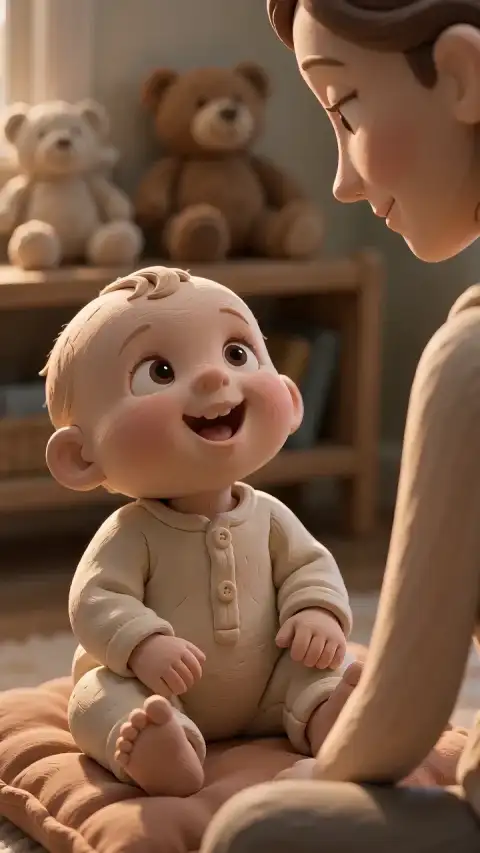
The baby video sample shows a fictional clay character in a cream romper interacting with a nearby parent. It has no audio track. The following video prompt is an adapted exercise, not the sample's recorded generation input or a promise to reproduce it.
An original clay-style baby character in a complete cream romper waves gently at a parent while sitting safely on a soft play mat. Warm nursery lighting, calm gentle motion, one continuous shot.
Watch the hand leave the body, the expression change and the posture settle. A family animation should be reviewed from beginning to end, not judged from its poster. Pause around the gesture to look for merged fingers or sudden changes to the character's clothes.
Decide whether you need a photo
Choose the input for the detail you want to guide in your family animation. A reference image can be an original illustration; a real baby photo is optional, not required.
| Input | What it guides | Check |
|---|---|---|
| Video prompt only | Character, setting and broad action. | Appearance and gesture may vary. |
| One reference image | The opening frame; ratio is adaptive. | Later facial details can change. |
| Video, optionally with an image | Motion; a paired image guides appearance. | No exact movement or identity lock. |
For a baby photo, obtain the necessary permissions and remove names, birthdays and private-location details. Keep the subject fully clothed and the scene non-sexual. An original reference image avoids submitting a child's identifiable photo, but does not make cloud processing anonymous. Review the terms and privacy information before uploading.
Generate, check and save the clip
- Prepare the input. Write a 3–2,000 character video prompt. Describe one gesture, outfit, setting and camera direction. Optionally add one reference image, one video or both through Add Media; uploads require sign-in. Wait for validation. Desktop users can receive media from a phone without starting generation.
- Check files and output settings. Static JPEG/PNG/WebP images must be ≤ 10 MiB, ≥ 300 pixels per side and ≤ 36 megapixels. MP4/MOV references need a video track, ≤ 20 MiB and ≤ 4,096 pixels per side: Basic accepts 2–15 seconds, Pro 2–30. Trim longer references first. Basic output is 4–15 seconds at 480p/720p; Pro is 4–30 seconds and adds 1080p. Check the ratio and Native Audio setting.
- Review the credits. Review the displayed credits, then select Generate Video to start; sign in if prompted. Model, output duration, resolution and reference-video duration affect the estimate, which updates as you change your inputs or settings. See the video credit guide.
- Review and download. Follow the original task in My Videos, including after a connection drop. Play the entire baby video, check faces, fingers, clothing and any sound, then download or send the completed clip to your phone. Posting your family animation elsewhere is a separate step.
Review changes before another attempt
If the baby video changes a face or merges a hand into clothing, try one smaller movement or a simpler background in the video prompt. These are adjustments to test, not repair guarantees. A new baby video cannot patch a frame in the old clip; each attempt needs its own quote.
A baby video you dislike or a dropped connection is not automatically a failed task. Confirmed failure or cancellation without a usable result returns credits with their original expiry; expired credits remain unavailable. Cash-refunded purchases can affect reconciliation. Check the original task and the refund policy before retrying.
Check processing and permission before sharing
Prompts and the reference media needed for generation are sent to generation providers. Product access to source media and results is restricted to your account by default, but anyone with an accessible direct storage URL can read that file. Account visibility is not a promise of no processing or immediate deletion; see the privacy policy for retention and deletion requests.
TikTok’s current AI-content rules classify everyone under 18 as a private figure and prohibit using private figures’ likenesses without consent. Realistic AI scenes also require disclosure. Check likeness consent and the platform’s safety restrictions before posting a child’s clip.
Before sharing a clip based on a real child’s photo, review the audience and remove identifying background details. UNICEF’s guide to sharing children’s images online recommends considering privacy settings, locations and school logos when sharing children’s images.
Questions before you start
Choose the right workflow
What is a baby AI video generator?
The baby AI video generator creates fictional family or baby-themed animation. It is not a baby-face predictor and cannot determine a future child’s appearance.
Do I need a photo or a reference video?
Start with text, optionally add up to 9 photos with Basic or 30 with Pro, plus one reference video. A single image without video guides the first frame; multiple photos provide visual references. With a video, photos guide appearance while the video guides motion.
Can I post a realistic AI video of a child on every platform?
No blanket permission applies. Obtain appropriate consent and check the destination’s current rules for minors and realistic synthetic media. Generation access does not establish posting eligibility; use fictional non-identifying characters when appropriate.
Will the result exactly match my reference?
No exact match is guaranteed. Appearance, motion, lettering and audio can vary. Start with a clear source and one simple action, then inspect the entire finished clip before sharing or buying another attempt.
Can I guarantee that a baby scene contains only safe, age-appropriate actions?
No automatic guarantee is provided. Describe a gentle fictional scene, then review faces, limbs, toys, furniture and actions yourself. Remove unsafe or disturbing results; generated scenes are not verified childcare demonstrations.
Prepare and generate
Can I control the background, camera and exact action timing?
Describe a background, one action and a camera move in the prompt. These guide a new scene rather than lock pixels or timestamps. There are no masking, subject-isolation or per-second motion controls, so check the entire result.
Can I generate sound or upload my own song?
Native audio requests generated sound; turning it off requests silence. General tools have no separate song upload, exact voice matching, precise lip sync or beat mapping. Add licensed music and precise speech in an editor after download. Original reference soundtracks are not guaranteed, and there is no exported audio-mix or volume editor.
Accounts, credits and task status
How much will one generation cost?
The creation area shows the current quote. Tier, output length, resolution and reference-video duration affect it; prepared template references can also count. Recheck the total after changing settings. Video Credit Guide
Save, share and protect your media
Are my uploads private, and who processes them?
Product access is restricted to your account by default; generation providers process submitted inputs. Anyone with an accessible direct storage URL can read the file. Review the privacy policy before uploading sensitive material. Privacy Policy
Where can I find and download my finished video?
Open the completed task in the creation area or My Videos, play the result and use Download. Save your own copy for later editing or posting. Samples are examples, not your personal task output. The download is an MP4 file. My Videos
Sources
-
TikTok: AI labels and likeness consent — disclosure and permission requirements.
-
YouTube: determine whether content is made for kids — audience and presentation factors.