
Personalized Christmas Video Generator
Use one portrait to dance with Santa, wave from a sleigh or step inside a snow globe.
Make your Christmas video
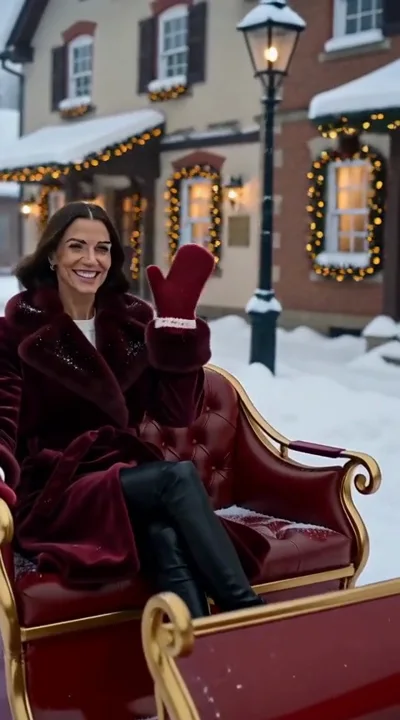
Wave from a sleigh on a snowy Christmas ride.
Christmas Scenes to Star In
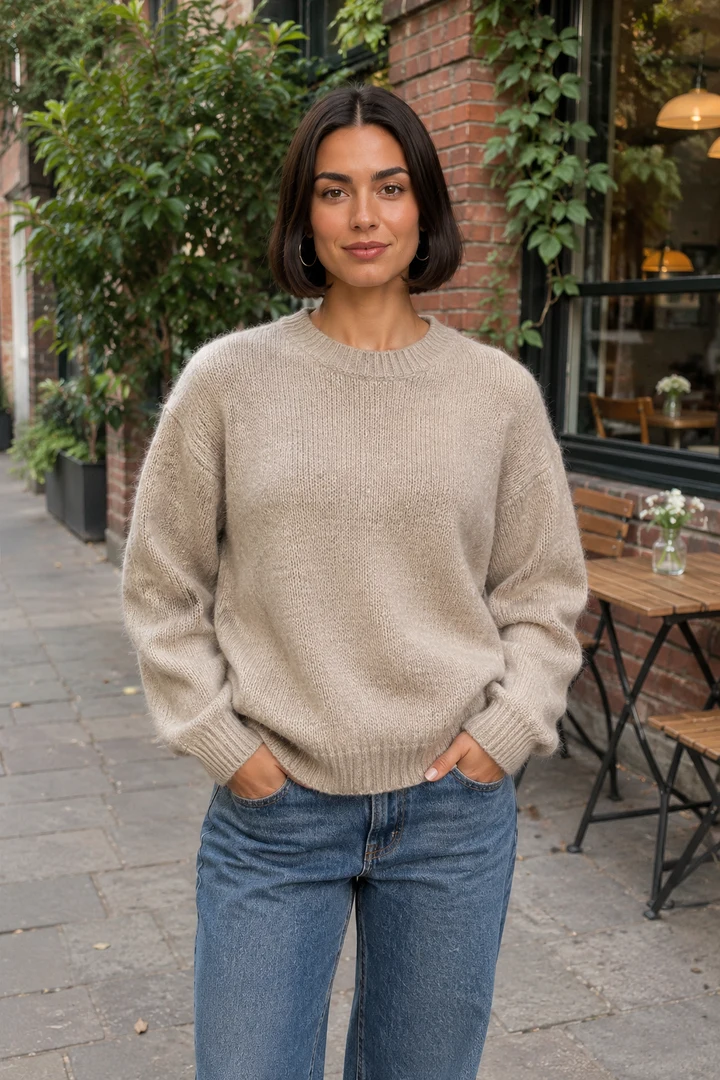
Hover over a scene for a silent preview, or select it to open the player. Upload one portrait to put that person in the lead.
How will my photo appear?
In Christmas Sleigh Ride, the person in your portrait plays the lead. The sample shows the movement and setting for your clip.
How do I make a personalized Christmas video?
A personalized Christmas video puts the person in your photo into a short holiday performance. Each Christmas scene has its own camera framing and movement. Play a sample all the way through before picking a portrait. If you want the recipient to recognize a face at a glance, watch how long it stays in view during the snow globe scene and during the faster dance.
Choose a scene and photo
Choose a Christmas scene and upload a clear photo of one person. A front-facing portrait with good light makes the lead easier to recognize.
Preview the movement
Preview the two dance routines to choose your choreography, or try the snowy window for a quieter holiday portrait. Use the scene selector to switch between them.
Generate and review your video
Choose a model and review the credit quote before generating. Play the finished clip to check the face and movement. Under Quality and sound, choose Include sound before generating if you want audio in the file. If the upload is rejected, check the file type, size and dimensions beside Upload Portrait. Sign in when prompted, then press Make a Christmas Video to start your take.
Save a copy for Christmas Eve
Download your MP4 from the finished result. Open the file on the device you will use, turn up the volume and let it play to the end. On iPhone, Safari downloads are available from its Downloads button or in the Files app. Apple Support — finding downloads on iPhone

Which Christmas scene should I choose?
A wave from a sleigh. In Christmas Sleigh Ride, a red mitten catches the eye as the shops pass behind the rider. Choose this Christmas scene for a greeting you can recognize with the sound off. For a real-world picture of the ride, the Leavenworth winter guide describes horse-drawn sleighs crossing the snow.
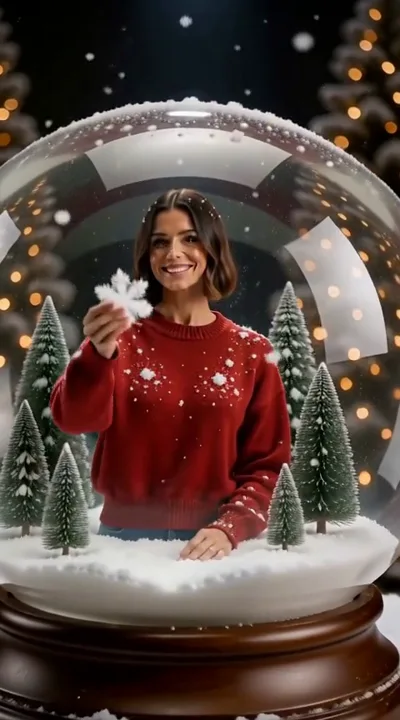
A moving holiday card. Snow Globe frames the lead inside the glass. The miniature figure and slowly falling glitter in Good Food’s snow globe guide illustrate the effect. Choose Christmas Window Snowfall for a portrait beside the glass, or Christmas Dress-Up for a costume reveal as the tree lights up.
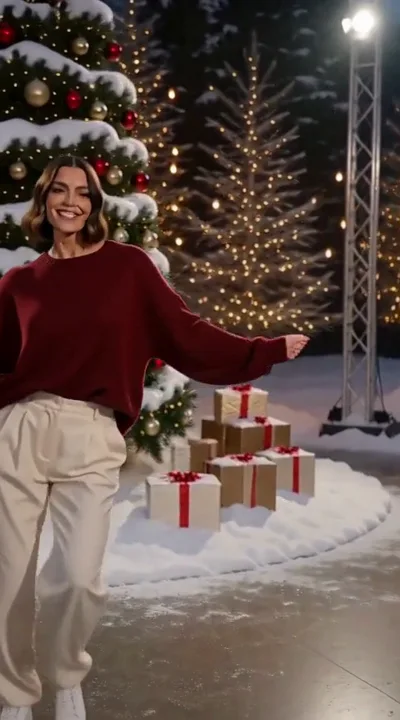
A Christmas dance. Santa Tell Me Dance gives the lead the outdoor stage. For a dance with Santa, play Deck the Halls Duet and follow the dancer in green. That is the role your portrait fills. Watch both dancers’ feet land on the same beat. Dreamina’s duet tutorial illustrates that cue with a shared side step.
Which kind of Christmas video fits your greeting?
One person starring in a scene. Here you can preview the exact routine and see which role you will play before spending credits. Pick a sleigh ride for a wave or a Christmas dance for a full-body performance. For a child’s story about meeting Santa or becoming an elf, Media.io’s Christmas story templates also start with a photo and offer those settings.
A year of family memories. If the Christmas video needs to show several people, places or moments in a particular order, collect those photos and clips first. Animoto’s holiday slideshow maker lets you arrange your own media in a holiday template.
A greeting addressed to someone by name. In Synthesia’s Santa message maker, choose a festive avatar, edit the words and receive the video by email. That workflow suits a recipient who wants to hear a personal message. To see their face in the sleigh ride or snow globe instead, choose a Christmas scene. For a setting of your own, describe it in the AI video generator.
Christmas video questions
What changes when I add my portrait?
Your portrait supplies the lead in the selected Christmas scene. The sample shows the setting, costume and movement. Play your finished take to check how the face looks as the person turns or steps away from the camera.
Do I need to record myself dancing?
One portrait is enough. The scene supplies the choreography. Choose Santa Tell Me Dance for an outdoor routine or Deck the Halls Duet to dance beside Santa.
Which photo works best?
Choose one well-lit portrait with a single face clearly visible. Upload a JPG, PNG or WebP up to 10 MiB. Both sides must be at least 300 pixels, and the image can be up to 36 megapixels.
How much does a Christmas video cost?
The generator shows a credit quote for your scene, model and resolution before you start. Each new take has its own quote.
Can two people from my photo dance with Santa?
Deck the Halls Duet casts one person in the green sweater beside Santa. Use a solo portrait or crop a group photo to one face before uploading. Check that the cropped image still meets the minimum dimensions.
How long is each Christmas scene?
Allow about ten seconds for Deck the Halls Duet and about five for the other scenes. Check the duration shown under Quality and sound when you switch scenes.
Can Santa say a name or read a message?
These six scenes personalize the person on screen. Choose a scripted Santa message service if the words of the greeting matter. Include sound controls the audio in your generated clip.
How do I save my Christmas video on my phone?
On mobile, download the completed MP4 directly. On a computer, choose Save to Phone on the result and scan the code with your phone.
Sources
- Good Food — How to make a snow globe — A figurine and slow-falling glitter create the miniature scene.
- Leavenworth Chamber of Commerce — Winter in Leavenworth — A description of a horse-drawn sleigh ride through snowy surroundings.
- Dreamina — Dance With Santa — A two-person framing tutorial with a shared side step.
- Media.io — Personalized Christmas video for kids — Photo-based story ideas for a child meeting Santa or playing an elf.
- Animoto — Christmas video maker — Holiday slideshow templates for a collection of photos and clips.
- Synthesia — Personalized Santa message — A spoken greeting made with a festive avatar and a custom script.
- Apple Support — finding downloads on iPhone — Where to find a saved video in Safari and Files.